

Overview
Grok (grok.com) supports custom MCP connectors, letting you plug the Anysite MCP Server directly into your Grok conversations. Once connected, Grok can pull live data from LinkedIn, Instagram, Twitter/X, Reddit, e-commerce marketplaces, company registries, and 550+ other sources — right in the chat. Perfect for:- Lead research and enrichment during conversations
- Company and people intelligence on demand
- Social media monitoring and content analysis
- Market and competitor research
- CRM enrichment workflows (HubSpot, Pipedrive)
MCP Unlimited Plan Required: This integration requires an active MCP Unlimited subscription ($30/month) for unlimited data extraction.
Prerequisites
Before you begin, ensure you have:- A Grok account with access to Connectors
- Anysite account with MCP Unlimited subscription
- A browser that allows pop-up windows from grok.com (needed for OAuth authorization)
Unlike API-key integrations, Grok connects via OAuth — you don’t need to copy any API key. Authentication happens in a secure Anysite pop-up window.
Step 1: Open Connectors in Grok
1
Go to Skills and Connectors
In Grok, open the Skills and Connectors page and switch to the Connectors tab.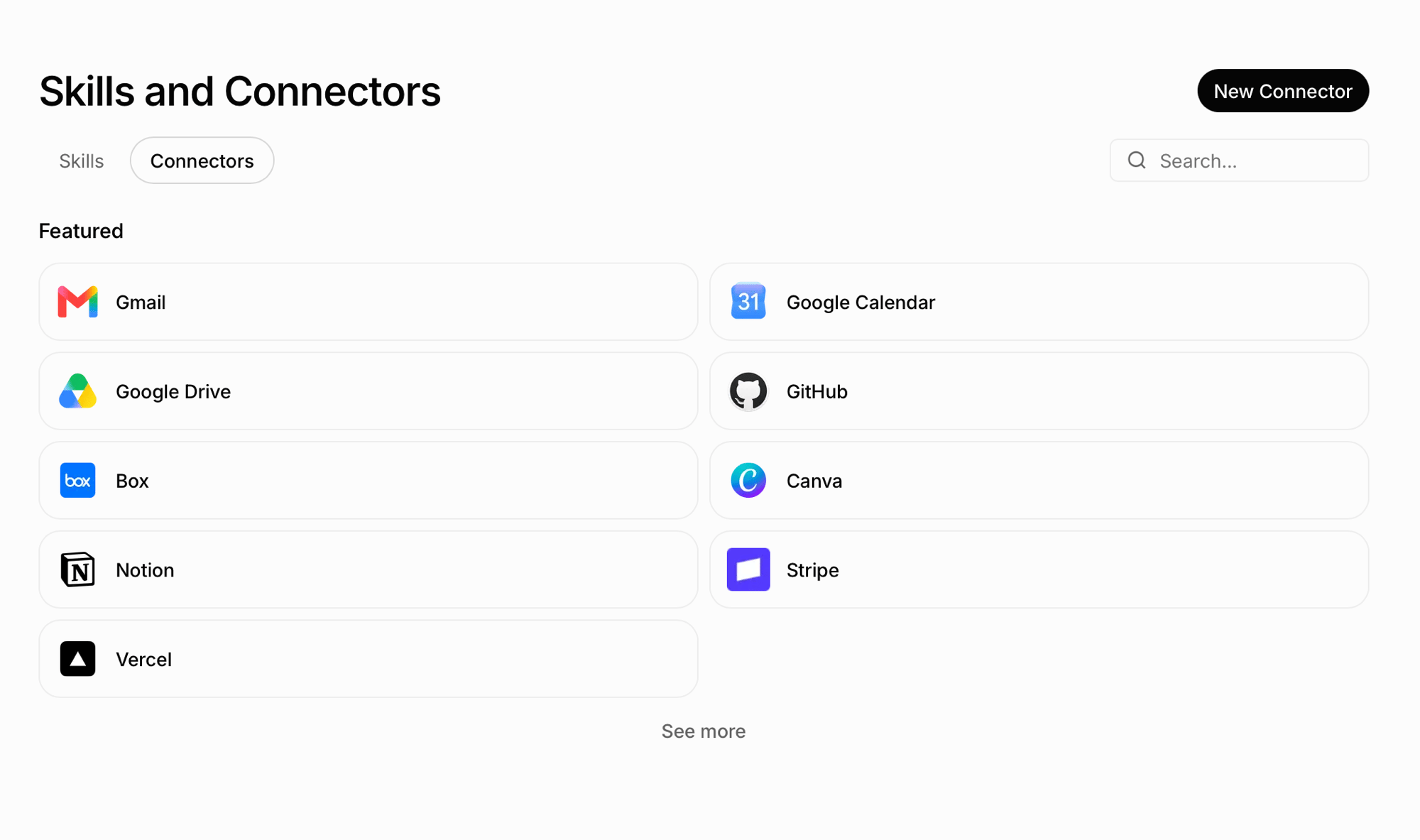
2
Create a New Connector
Click New Connector in the top-right corner, then choose Custom — Add your own custom connector.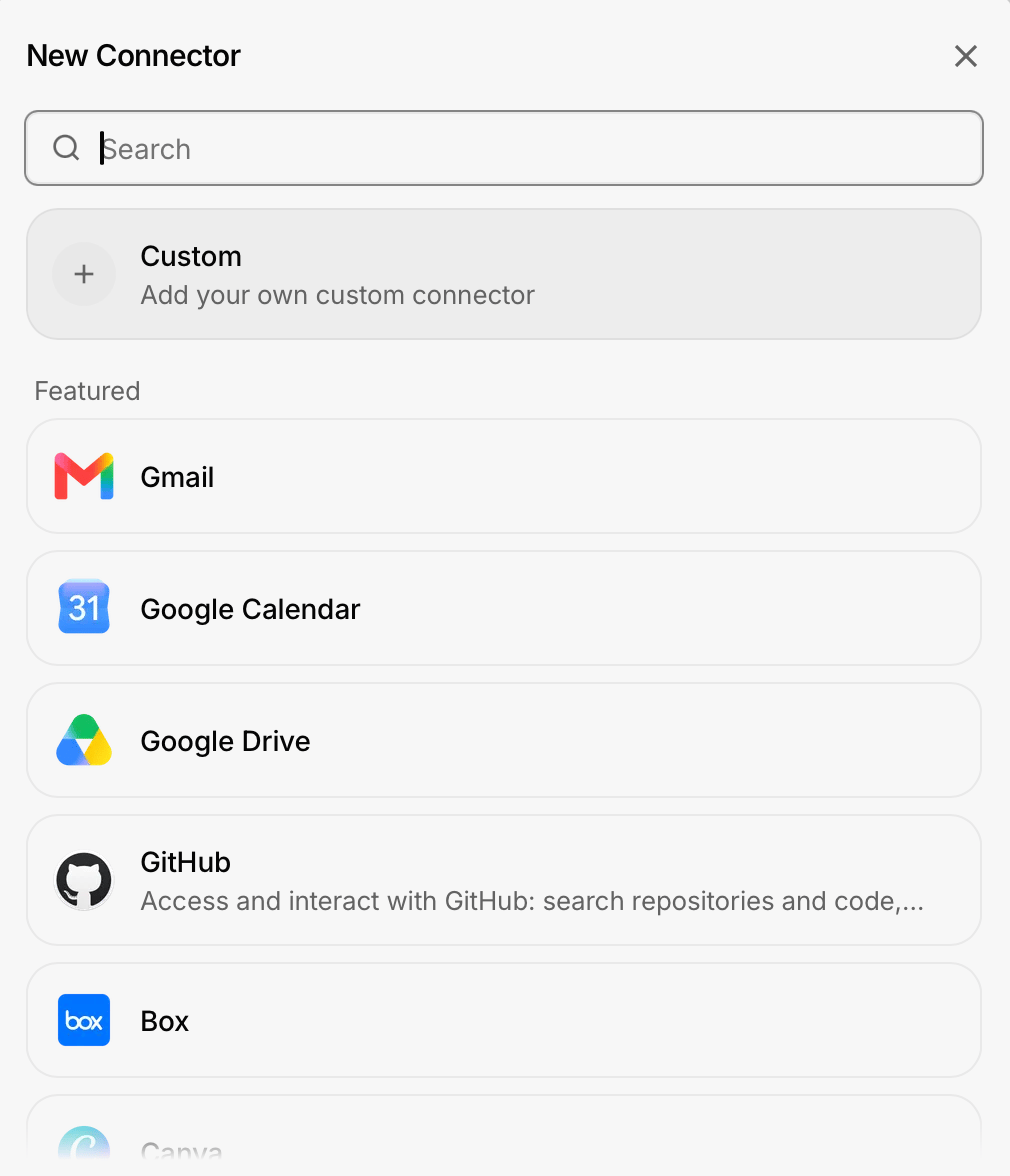
Step 2: Configure the Anysite Connector
1
Fill in the Custom Connector form
Enter the connection details: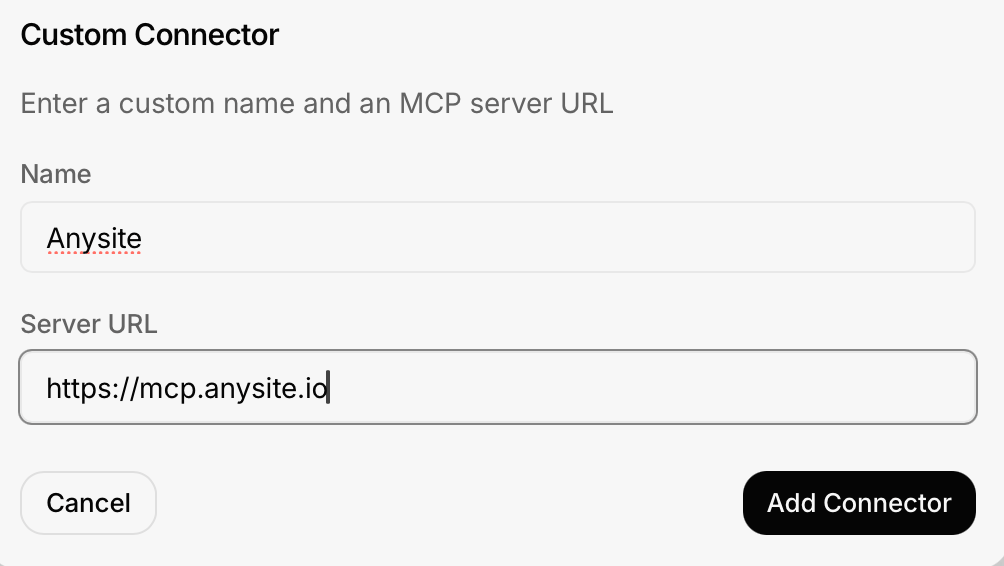
- Name:
Anysite - Server URL:
https://mcp.anysite.io
2
Connect and authorize
After the connector is added, click Connect. A pop-up window opens with the Anysite authorization page: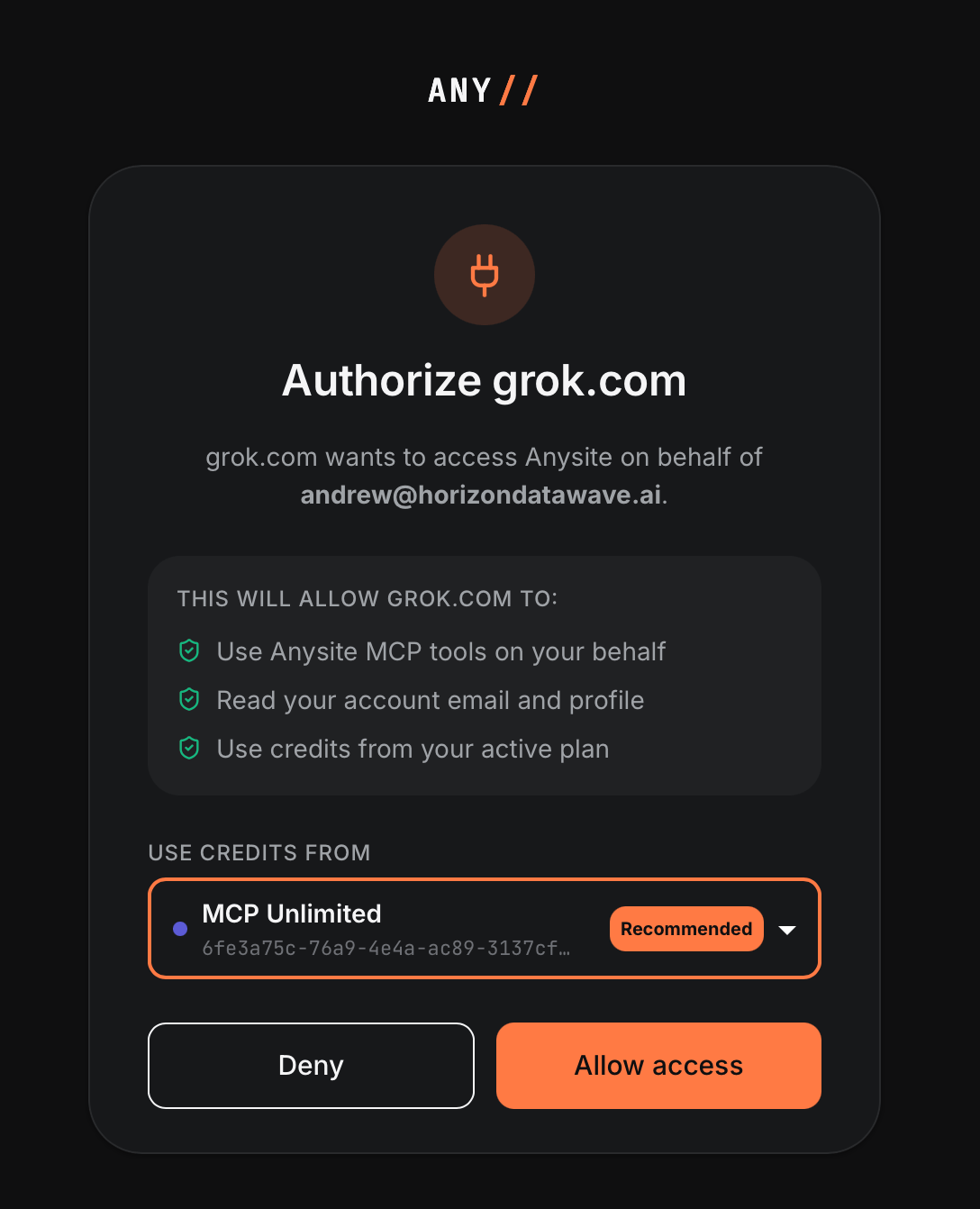
- Review what grok.com will be allowed to do (use Anysite MCP tools, read your account email, use credits from your plan)
- Under Use credits from, select your MCP Unlimited plan (marked Recommended)
- Click Allow access
Step 3: Verify the Connection
Once authorized, open the Anysite connector card in Grok. You should see All tools enabled with the list of available tools: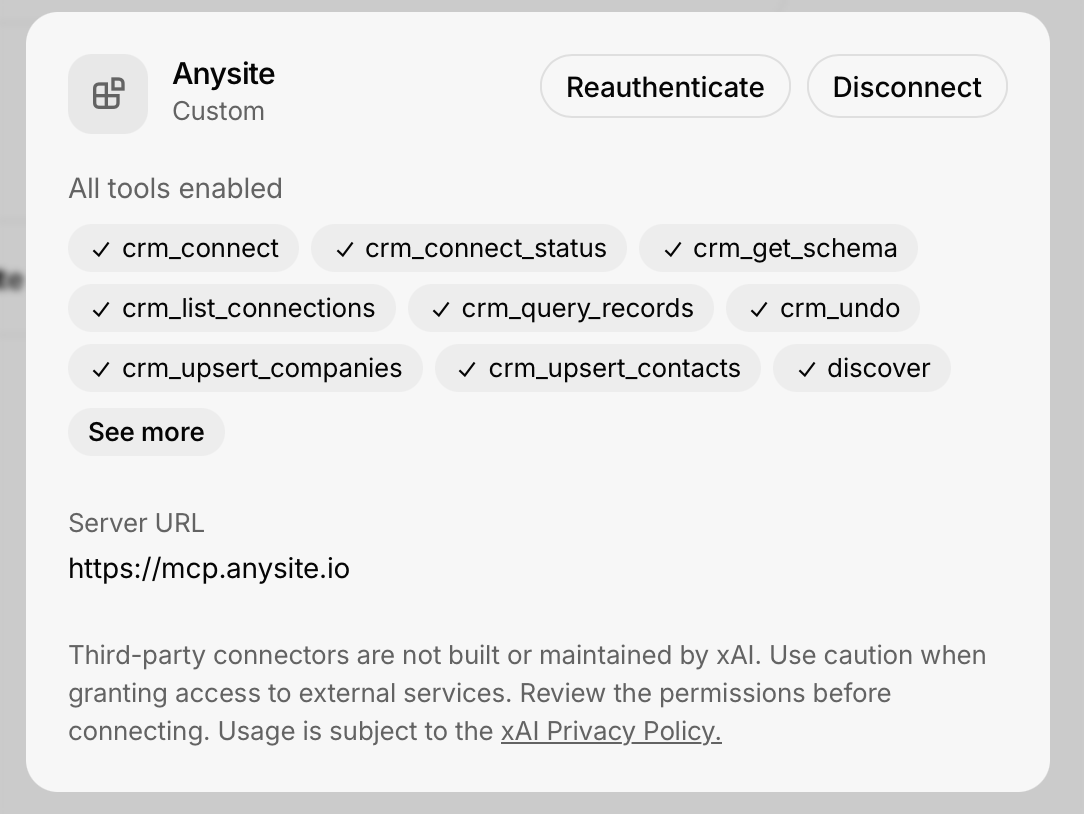
Connection successful! Grok now has access to the full Anysite toolset — 3,500+ endpoints across 550+ data sources.
Available Tools
The Anysite MCP Server exposes universal meta-tools that cover the entire API surface:discover— find the right data source and endpoint for any requestexecute— call any of the 3,500+ endpoints (LinkedIn, Instagram, Twitter/X, Reddit, YouTube, e-commerce, registries, and more)get_page/query_cache/export_data— paginate, re-filter, and export collected resultscrm_*— connect and enrich HubSpot or Pipedrive records (contacts, companies, schema, undo)
View All Tools
Browse the complete list of available MCP tools
Use Cases & Examples
1. Lead Research in Chat
Ask Grok directly:discover to locate the LinkedIn endpoints, then execute to fetch the profile and posts — no manual API calls needed.
2. Company Intelligence
3. Multi-Platform Monitoring
4. E-commerce & Market Research
5. CRM Enrichment
Troubleshooting
Connection failed after clicking Connect
Connection failed after clicking Connect
Most common cause: the browser blocked the OAuth pop-up window.Solutions:
- Allow pop-up windows for grok.com in your browser settings
- Click Connect (or Reauthenticate) again and complete the authorization in the pop-up
- If the pop-up opens but shows an error, log in to app.anysite.io first, then retry
Tools not available in conversations
Tools not available in conversations
Solutions:
- Open the connector card and check that it shows All tools enabled
- Toggle the connector off and on, or click Reauthenticate
- Start a new conversation — connectors added mid-chat may not be picked up
Rate limits or quota errors
Rate limits or quota errors
Note: With MCP Unlimited, MCP requests have no rate limits.If you see errors:
- Verify the connector is using credits from your MCP Unlimited plan (visible on the authorization screen)
- Check your subscription status in the Anysite dashboard
- Contact support if issues persist
Connector stopped working after some time
Connector stopped working after some time
Solutions:
- Click Reauthenticate on the connector card to refresh the OAuth session
- If that fails, Disconnect and connect again
- Check status.anysite.io for any ongoing incidents
Security Best Practices
OAuth, Not API Keys
The Grok integration uses OAuth — no API key ever leaves Anysite. You can revoke access at any time by disconnecting the connector or from your Anysite dashboard.
Review Permissions
The authorization screen lists exactly what grok.com can do: use MCP tools on your behalf, read your account email, and use credits from your selected plan. Review it before clicking Allow access.
Data Privacy
Handle extracted data responsibly: follow GDPR and data protection laws, and respect platform terms of service. Third-party connectors are not built or maintained by xAI.
Monitor Usage
Track your MCP activity in the Anysite dashboard and review connected integrations regularly.
Benefits of Grok + MCP Integration
Unlimited Requests
With MCP Unlimited ($30/month), make as many data requests as you need in Grok — no credit anxiety, no overage charges.
One-Click OAuth Setup
No API keys to copy or store. Add the server URL, authorize in the pop-up, and you’re done.
550+ Data Sources
A single connector gives Grok access to 3,500+ endpoints: social media, e-commerce, company registries, finance, real estate, and more.
Real-Time Data
Grok answers with fresh data extracted live from the source platforms — no stale databases.
Next Steps
View All MCP Tools
Explore the complete MCP toolset
MCP Unlimited Plan
Learn more about MCP Unlimited benefits and pricing
Dashboard
Manage your subscription and monitor usage
Grok
Open Grok and start asking data questions
Support
Need help with the Grok + MCP integration?Email Support
Get technical assistance from our team
Documentation
Browse complete MCP documentation
Community
Join discussions and share use cases
Status Page
Check API status and uptime
Ready to give Grok superpowers? Connect Anysite MCP and start pulling live data from 550+ sources directly in your conversations!