> ## Documentation Index
> Fetch the complete documentation index at: https://docs.anysite.io/llms.txt
> Use this file to discover all available pages before exploring further.
# Grok Integration
> Connect Anysite MCP Server to Grok (grok.com) for unlimited data extraction in your AI conversations
## Overview
Grok (grok.com) supports custom MCP connectors, letting you plug the Anysite MCP Server directly into your Grok conversations. Once connected, Grok can pull live data from LinkedIn, Instagram, Twitter/X, Reddit, e-commerce marketplaces, company registries, and 550+ other sources — right in the chat.
**Perfect for:**
* Lead research and enrichment during conversations
* Company and people intelligence on demand
* Social media monitoring and content analysis
* Market and competitor research
* CRM enrichment workflows (HubSpot, Pipedrive)
**MCP Unlimited Plan Required:** This integration requires an active MCP Unlimited subscription (\$30/month) for unlimited data extraction.
## Prerequisites
Before you begin, ensure you have:
* A [Grok](https://grok.com) account with access to Connectors
* Anysite account with MCP Unlimited subscription
* A browser that allows pop-up windows from grok.com (needed for OAuth authorization)
Unlike API-key integrations, Grok connects via **OAuth** — you don't need to copy any API key. Authentication happens in a secure Anysite pop-up window.
## Step 1: Open Connectors in Grok
In Grok, open the **Skills and Connectors** page and switch to the **Connectors** tab.
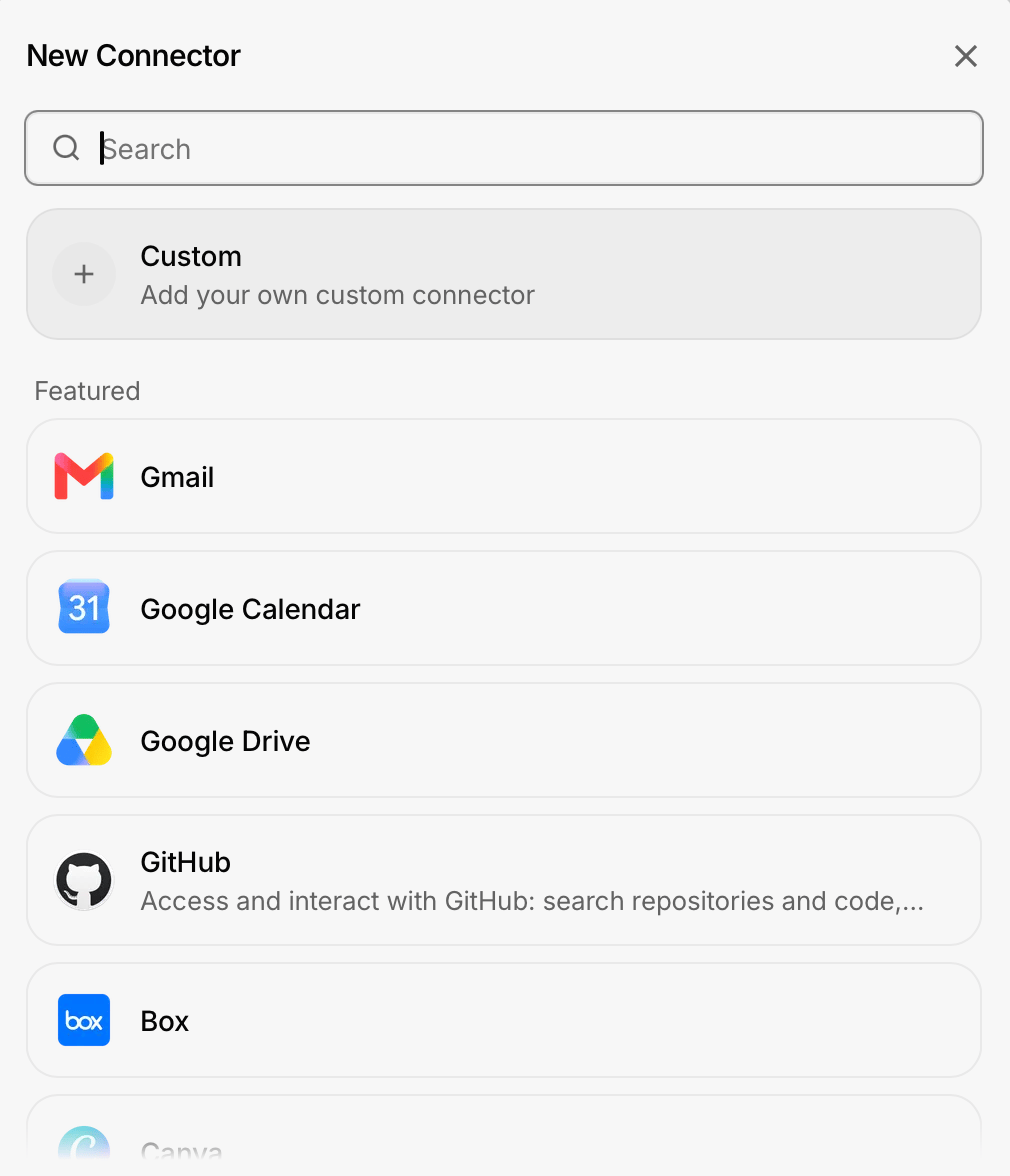
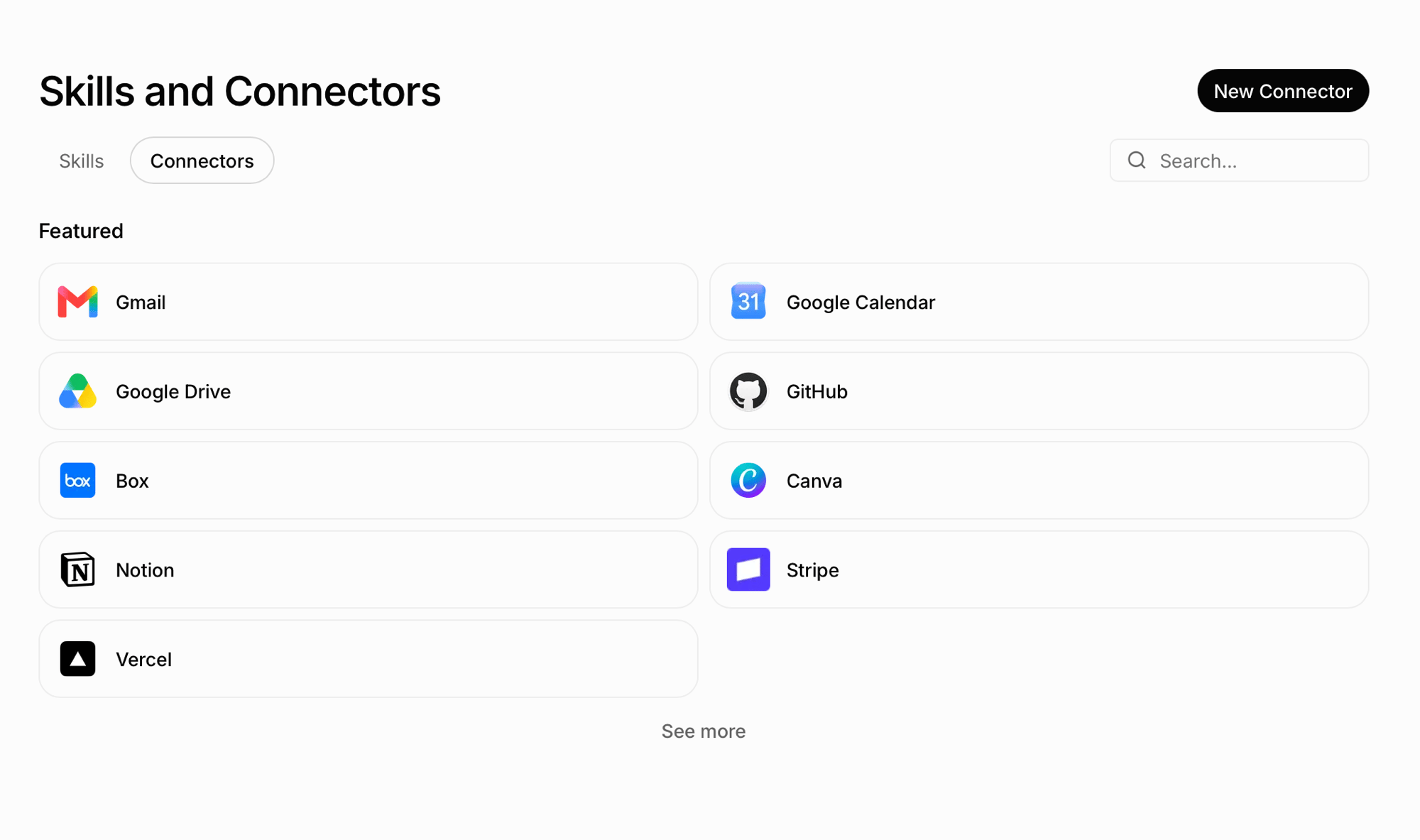 Click **New Connector** in the top-right corner, then choose **Custom — Add your own custom connector**.
 ## Step 2: Configure the Anysite Connector
Enter the connection details:
1. **Name**: `Anysite`
2. **Server URL**: `https://mcp.anysite.io`
## Step 2: Configure the Anysite Connector
Enter the connection details:
1. **Name**: `Anysite`
2. **Server URL**: `https://mcp.anysite.io`
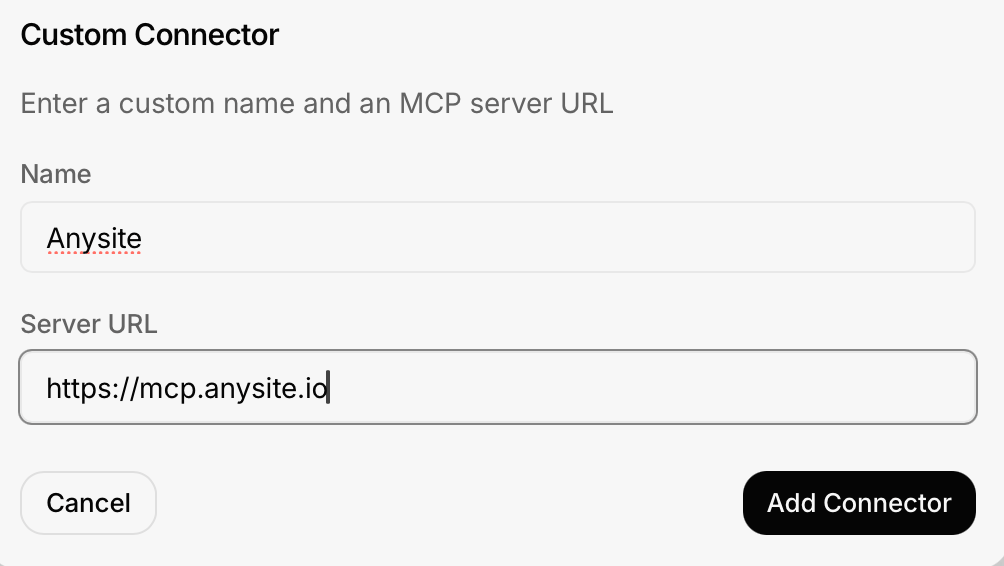 Click **Add Connector**.
After the connector is added, click **Connect**. A pop-up window opens with the Anysite authorization page:
Click **Add Connector**.
After the connector is added, click **Connect**. A pop-up window opens with the Anysite authorization page:
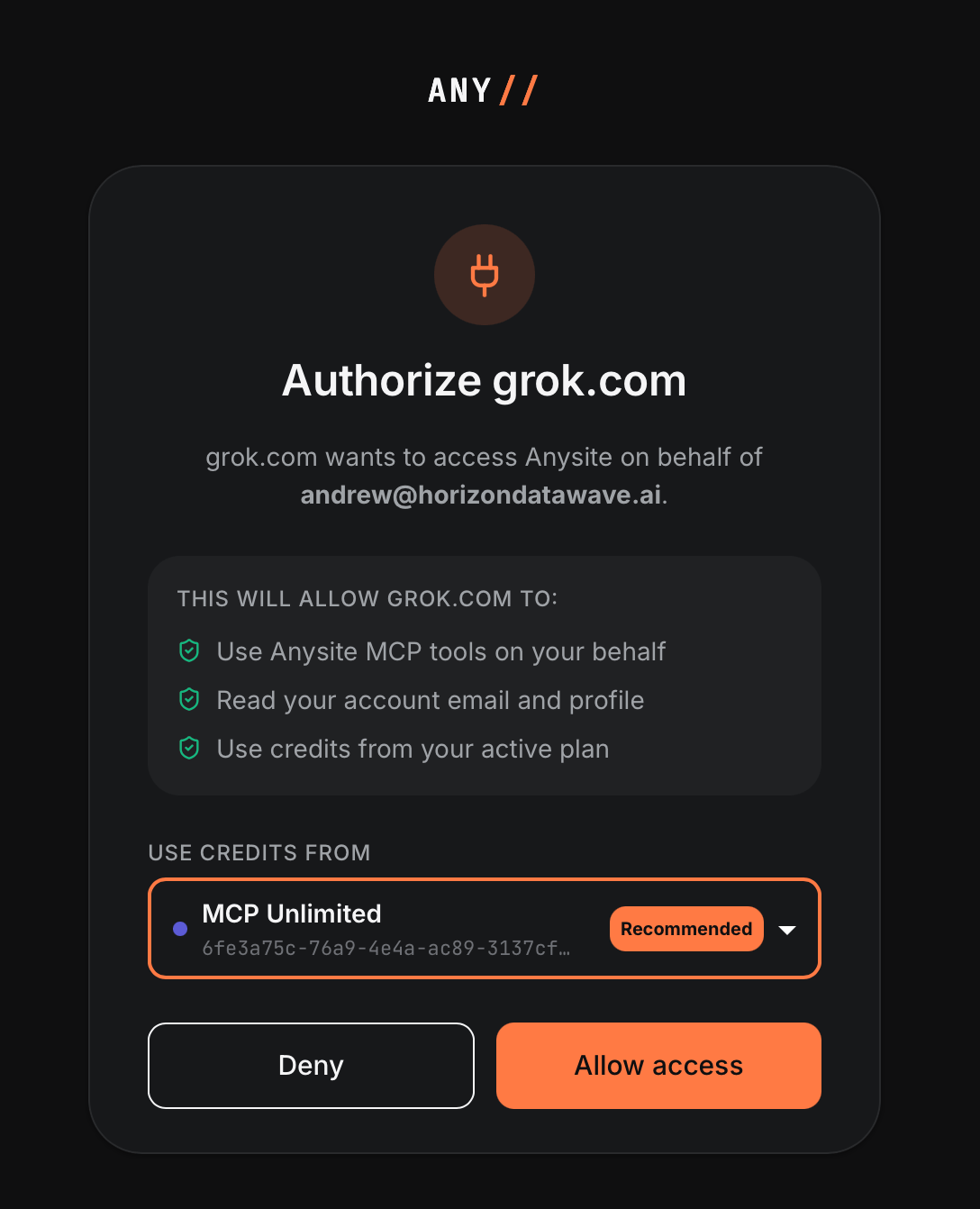 1. Review what grok.com will be allowed to do (use Anysite MCP tools, read your account email, use credits from your plan)
2. Under **Use credits from**, select your **MCP Unlimited** plan (marked *Recommended*)
3. Click **Allow access**
**Seeing "Connection failed" after clicking Connect?** Your browser most likely blocked the authorization pop-up. Allow pop-up windows for **grok.com** in your browser settings, then click **Connect** (or **Reauthenticate**) again — the Anysite authorization window will open and you can complete the login.
## Step 3: Verify the Connection
Once authorized, open the Anysite connector card in Grok. You should see **All tools enabled** with the list of available tools:
1. Review what grok.com will be allowed to do (use Anysite MCP tools, read your account email, use credits from your plan)
2. Under **Use credits from**, select your **MCP Unlimited** plan (marked *Recommended*)
3. Click **Allow access**
**Seeing "Connection failed" after clicking Connect?** Your browser most likely blocked the authorization pop-up. Allow pop-up windows for **grok.com** in your browser settings, then click **Connect** (or **Reauthenticate**) again — the Anysite authorization window will open and you can complete the login.
## Step 3: Verify the Connection
Once authorized, open the Anysite connector card in Grok. You should see **All tools enabled** with the list of available tools:
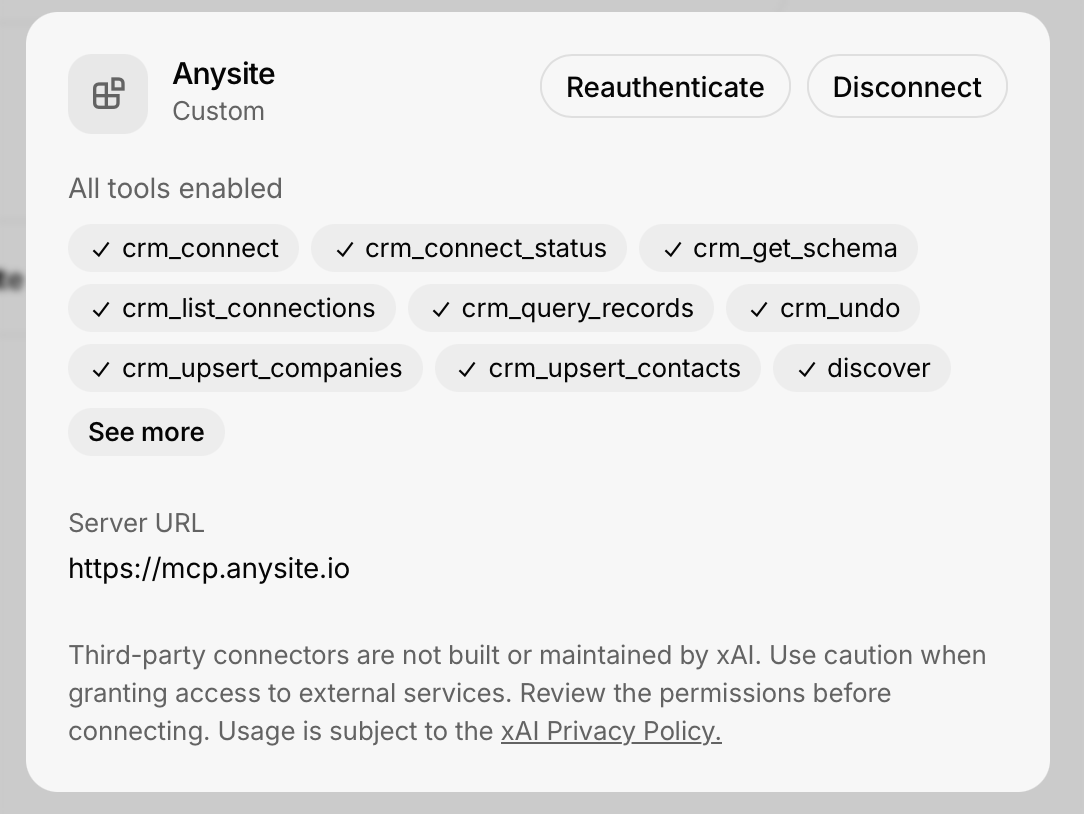 **Connection successful!** Grok now has access to the full Anysite toolset — 3,500+ endpoints across 550+ data sources.
### Available Tools
The Anysite MCP Server exposes universal meta-tools that cover the entire API surface:
* **`discover`** — find the right data source and endpoint for any request
* **`execute`** — call any of the 3,500+ endpoints (LinkedIn, Instagram, Twitter/X, Reddit, YouTube, e-commerce, registries, and more)
* **`get_page`** / **`query_cache`** / **`export_data`** — paginate, re-filter, and export collected results
* **`crm_*`** — connect and enrich HubSpot or Pipedrive records (contacts, companies, schema, undo)
Browse the complete list of available MCP tools
## Use Cases & Examples
### 1. Lead Research in Chat
Ask Grok directly:
```
Find the LinkedIn profile of the CTO of Acme Corp, summarize their
background, and pull their 5 most recent posts.
```
Grok uses `discover` to locate the LinkedIn endpoints, then `execute` to fetch the profile and posts — no manual API calls needed.
### 2. Company Intelligence
```
Research Anthropic: company profile, headcount growth, recent
LinkedIn posts, and any recent funding news.
```
### 3. Multi-Platform Monitoring
```
What are people saying about our brand on Reddit and Twitter this
week? Summarize sentiment and highlight the top threads.
```
### 4. E-commerce & Market Research
```
Compare prices for Sony WH-1000XM5 across Amazon, eBay and Walmart,
and pull the review summary from each.
```
### 5. CRM Enrichment
```
Connect to my HubSpot and enrich my 20 newest contacts with their
current job titles and LinkedIn profiles.
```
## Troubleshooting
**Most common cause:** the browser blocked the OAuth pop-up window.
**Solutions:**
* Allow pop-up windows for **grok.com** in your browser settings
* Click **Connect** (or **Reauthenticate**) again and complete the authorization in the pop-up
* If the pop-up opens but shows an error, log in to [app.anysite.io](https://app.anysite.io) first, then retry
**Possible causes:**
* MCP Unlimited subscription is not active
* You're logged in to a different Anysite account
**Solutions:**
* Verify your subscription at [app.anysite.io](https://app.anysite.io)
* Log out of Anysite in the pop-up and sign in with the correct account
* Make sure **MCP Unlimited** is selected under "Use credits from" before clicking **Allow access**
**Solutions:**
* Open the connector card and check that it shows **All tools enabled**
* Toggle the connector off and on, or click **Reauthenticate**
* Start a new conversation — connectors added mid-chat may not be picked up
**Note:** With MCP Unlimited, MCP requests have no rate limits.
**If you see errors:**
* Verify the connector is using credits from your **MCP Unlimited** plan (visible on the authorization screen)
* Check your subscription status in the Anysite dashboard
* Contact support if issues persist
**Solutions:**
* Click **Reauthenticate** on the connector card to refresh the OAuth session
* If that fails, **Disconnect** and connect again
* Check [status.anysite.io](https://status.anysite.io) for any ongoing incidents
## Security Best Practices
The Grok integration uses OAuth — no API key ever leaves Anysite. You can revoke access at any time by disconnecting the connector or from your Anysite dashboard.
The authorization screen lists exactly what grok.com can do: use MCP tools on your behalf, read your account email, and use credits from your selected plan. Review it before clicking **Allow access**.
Handle extracted data responsibly: follow GDPR and data protection laws, and respect platform terms of service. Third-party connectors are not built or maintained by xAI.
Track your MCP activity in the Anysite dashboard and review connected integrations regularly.
## Benefits of Grok + MCP Integration
With MCP Unlimited (\$30/month), make as many data requests as you need in Grok — no credit anxiety, no overage charges.
No API keys to copy or store. Add the server URL, authorize in the pop-up, and you're done.
A single connector gives Grok access to 3,500+ endpoints: social media, e-commerce, company registries, finance, real estate, and more.
Grok answers with fresh data extracted live from the source platforms — no stale databases.
## Next Steps
Explore the complete MCP toolset
Learn more about MCP Unlimited benefits and pricing
Manage your subscription and monitor usage
Open Grok and start asking data questions
## Support
Need help with the Grok + MCP integration?
Get technical assistance from our team
Browse complete MCP documentation
Join discussions and share use cases
Check API status and uptime
***
**Ready to give Grok superpowers?** Connect Anysite MCP and start pulling live data from 550+ sources directly in your conversations!
**Connection successful!** Grok now has access to the full Anysite toolset — 3,500+ endpoints across 550+ data sources.
### Available Tools
The Anysite MCP Server exposes universal meta-tools that cover the entire API surface:
* **`discover`** — find the right data source and endpoint for any request
* **`execute`** — call any of the 3,500+ endpoints (LinkedIn, Instagram, Twitter/X, Reddit, YouTube, e-commerce, registries, and more)
* **`get_page`** / **`query_cache`** / **`export_data`** — paginate, re-filter, and export collected results
* **`crm_*`** — connect and enrich HubSpot or Pipedrive records (contacts, companies, schema, undo)
Browse the complete list of available MCP tools
## Use Cases & Examples
### 1. Lead Research in Chat
Ask Grok directly:
```
Find the LinkedIn profile of the CTO of Acme Corp, summarize their
background, and pull their 5 most recent posts.
```
Grok uses `discover` to locate the LinkedIn endpoints, then `execute` to fetch the profile and posts — no manual API calls needed.
### 2. Company Intelligence
```
Research Anthropic: company profile, headcount growth, recent
LinkedIn posts, and any recent funding news.
```
### 3. Multi-Platform Monitoring
```
What are people saying about our brand on Reddit and Twitter this
week? Summarize sentiment and highlight the top threads.
```
### 4. E-commerce & Market Research
```
Compare prices for Sony WH-1000XM5 across Amazon, eBay and Walmart,
and pull the review summary from each.
```
### 5. CRM Enrichment
```
Connect to my HubSpot and enrich my 20 newest contacts with their
current job titles and LinkedIn profiles.
```
## Troubleshooting
**Most common cause:** the browser blocked the OAuth pop-up window.
**Solutions:**
* Allow pop-up windows for **grok.com** in your browser settings
* Click **Connect** (or **Reauthenticate**) again and complete the authorization in the pop-up
* If the pop-up opens but shows an error, log in to [app.anysite.io](https://app.anysite.io) first, then retry
**Possible causes:**
* MCP Unlimited subscription is not active
* You're logged in to a different Anysite account
**Solutions:**
* Verify your subscription at [app.anysite.io](https://app.anysite.io)
* Log out of Anysite in the pop-up and sign in with the correct account
* Make sure **MCP Unlimited** is selected under "Use credits from" before clicking **Allow access**
**Solutions:**
* Open the connector card and check that it shows **All tools enabled**
* Toggle the connector off and on, or click **Reauthenticate**
* Start a new conversation — connectors added mid-chat may not be picked up
**Note:** With MCP Unlimited, MCP requests have no rate limits.
**If you see errors:**
* Verify the connector is using credits from your **MCP Unlimited** plan (visible on the authorization screen)
* Check your subscription status in the Anysite dashboard
* Contact support if issues persist
**Solutions:**
* Click **Reauthenticate** on the connector card to refresh the OAuth session
* If that fails, **Disconnect** and connect again
* Check [status.anysite.io](https://status.anysite.io) for any ongoing incidents
## Security Best Practices
The Grok integration uses OAuth — no API key ever leaves Anysite. You can revoke access at any time by disconnecting the connector or from your Anysite dashboard.
The authorization screen lists exactly what grok.com can do: use MCP tools on your behalf, read your account email, and use credits from your selected plan. Review it before clicking **Allow access**.
Handle extracted data responsibly: follow GDPR and data protection laws, and respect platform terms of service. Third-party connectors are not built or maintained by xAI.
Track your MCP activity in the Anysite dashboard and review connected integrations regularly.
## Benefits of Grok + MCP Integration
With MCP Unlimited (\$30/month), make as many data requests as you need in Grok — no credit anxiety, no overage charges.
No API keys to copy or store. Add the server URL, authorize in the pop-up, and you're done.
A single connector gives Grok access to 3,500+ endpoints: social media, e-commerce, company registries, finance, real estate, and more.
Grok answers with fresh data extracted live from the source platforms — no stale databases.
## Next Steps
Explore the complete MCP toolset
Learn more about MCP Unlimited benefits and pricing
Manage your subscription and monitor usage
Open Grok and start asking data questions
## Support
Need help with the Grok + MCP integration?
Get technical assistance from our team
Browse complete MCP documentation
Join discussions and share use cases
Check API status and uptime
***
**Ready to give Grok superpowers?** Connect Anysite MCP and start pulling live data from 550+ sources directly in your conversations!