> ## Documentation Index
> Fetch the complete documentation index at: https://docs.anysite.io/llms.txt
> Use this file to discover all available pages before exploring further.
# Claude Desktop MCP Tool Installation
> Connect Anysite MCP Server to Claude Desktop using OAuth
## Overview
The Anysite MCP Tool for Claude Desktop provides seamless integration between Claude Desktop and the Anysite API through the Model Context Protocol (MCP). This allows Claude to extract LinkedIn, Instagram, Reddit, and other social media data directly within your conversations using OAuth authentication.
## Prerequisites
* Claude Desktop application installed ([download here](https://claude.ai/download))
* Anysite API account with active subscription
* Internet connection for OAuth authentication
## Why Claude Desktop Integration?
Secure OAuth 2.0 authentication - no API keys stored locally
Built-in connector support with easy setup through Claude Desktop settings
Granular control over which tools Claude can access and when
Automatic tool updates without manual configuration changes
## Installation Steps
### Step 1: Get OAuth Connection URL
First, obtain your OAuth URL from the Anysite dashboard:
1. Visit [anysite.io](https://anysite.io) and log in to your account
2. Navigate to **MCP Server Integration** section
3. You'll see two connection options:
* **OAuth URL**: `https://mcp.anysite.io/mcp` (recommended for Claude Desktop)
* **Direct URL**: Contains API key (use for other clients)
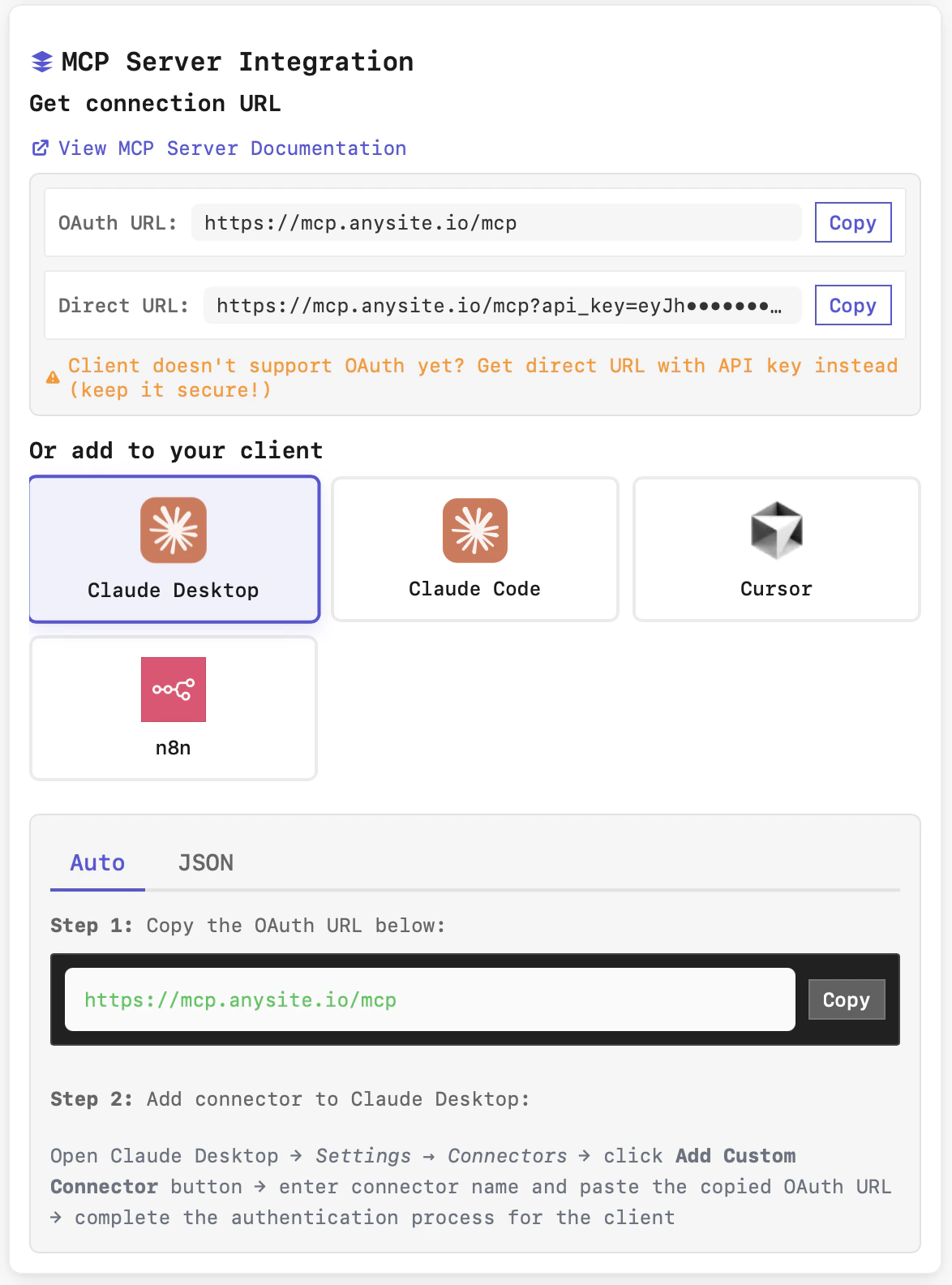 4. In the "Or add to your client" section, select **Claude Desktop**
5. The "Auto" tab will show you the installation instructions:
* **Step 1**: Copy the OAuth URL: `https://mcp.anysite.io/mcp`
* **Step 2**: Instructions for adding connector to Claude Desktop
For Claude Desktop, always use the **OAuth URL** (not Direct URL) for better security and automatic credential management.
### Step 2: Add Custom Connector in Claude Desktop
Now configure the connector in Claude Desktop:
1. Open **Claude Desktop** application
2. Navigate to **Settings** (gear icon in the bottom-left)
3. Click on **Connectors** tab
4. Click the **Add Custom Connector** button
4. In the "Or add to your client" section, select **Claude Desktop**
5. The "Auto" tab will show you the installation instructions:
* **Step 1**: Copy the OAuth URL: `https://mcp.anysite.io/mcp`
* **Step 2**: Instructions for adding connector to Claude Desktop
For Claude Desktop, always use the **OAuth URL** (not Direct URL) for better security and automatic credential management.
### Step 2: Add Custom Connector in Claude Desktop
Now configure the connector in Claude Desktop:
1. Open **Claude Desktop** application
2. Navigate to **Settings** (gear icon in the bottom-left)
3. Click on **Connectors** tab
4. Click the **Add Custom Connector** button
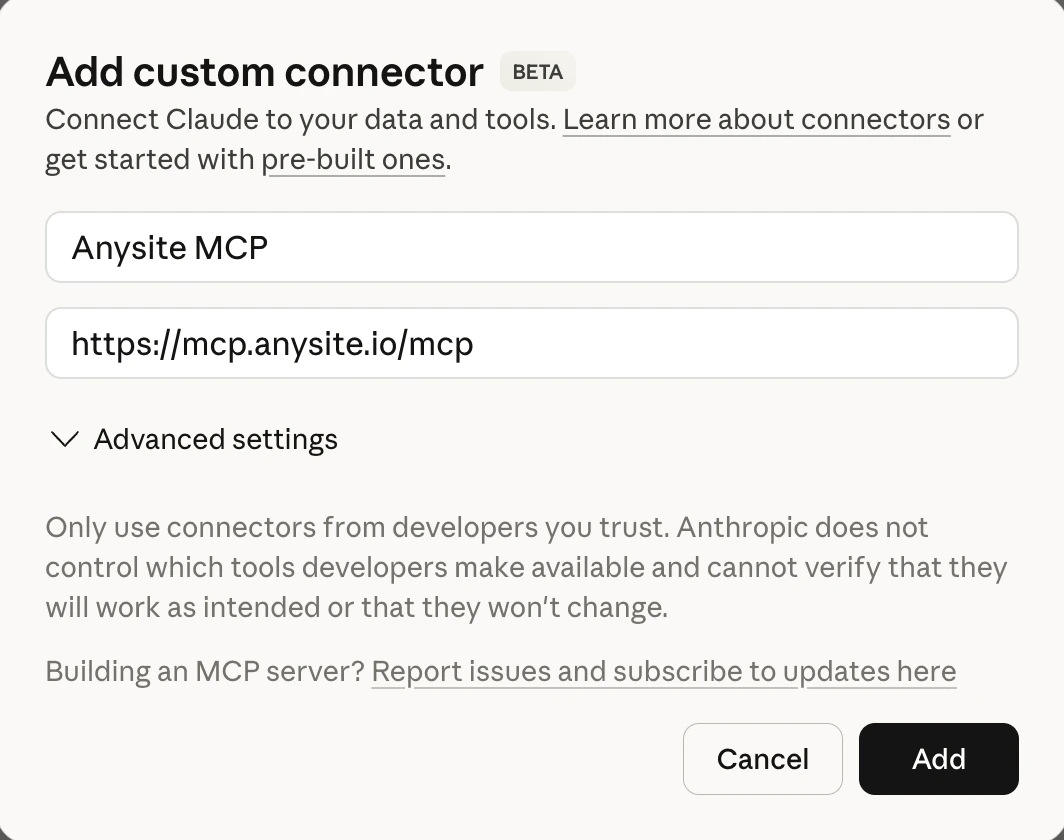 5. Fill in the connector details:
* **Connector Name**: Enter "Anysite MCP" (or any name you prefer)
* **OAuth URL**: Paste `https://mcp.anysite.io/mcp`
6. Expand **Advanced settings** if needed (usually defaults are fine)
7. You'll see a warning: "⚠ Confirm that you trust this connector"
* This is normal for custom connectors
* Read: "This connector has not been verified by Anthropic. You are responsible for all actions taken with Claude."
8. Click **Add** button to save the connector
Only add connectors from trusted sources. The Anysite MCP connector is safe and only accesses data through the Anysite API with your explicit permission.
### Step 3: Connect the Connector
After adding the connector, you need to establish the connection:
5. Fill in the connector details:
* **Connector Name**: Enter "Anysite MCP" (or any name you prefer)
* **OAuth URL**: Paste `https://mcp.anysite.io/mcp`
6. Expand **Advanced settings** if needed (usually defaults are fine)
7. You'll see a warning: "⚠ Confirm that you trust this connector"
* This is normal for custom connectors
* Read: "This connector has not been verified by Anthropic. You are responsible for all actions taken with Claude."
8. Click **Add** button to save the connector
Only add connectors from trusted sources. The Anysite MCP connector is safe and only accesses data through the Anysite API with your explicit permission.
### Step 3: Connect the Connector
After adding the connector, you need to establish the connection:
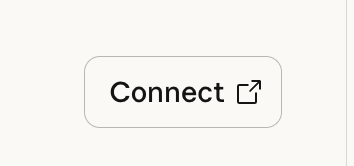 1. In the Connectors settings, find your newly added "Anysite MCP" connector
2. Click the **Connect** button (with arrow icon)
3. This will open your default web browser for OAuth authentication
### Step 4: Authorize Application
Complete the OAuth authorization process:
1. In the Connectors settings, find your newly added "Anysite MCP" connector
2. Click the **Connect** button (with arrow icon)
3. This will open your default web browser for OAuth authentication
### Step 4: Authorize Application
Complete the OAuth authorization process:
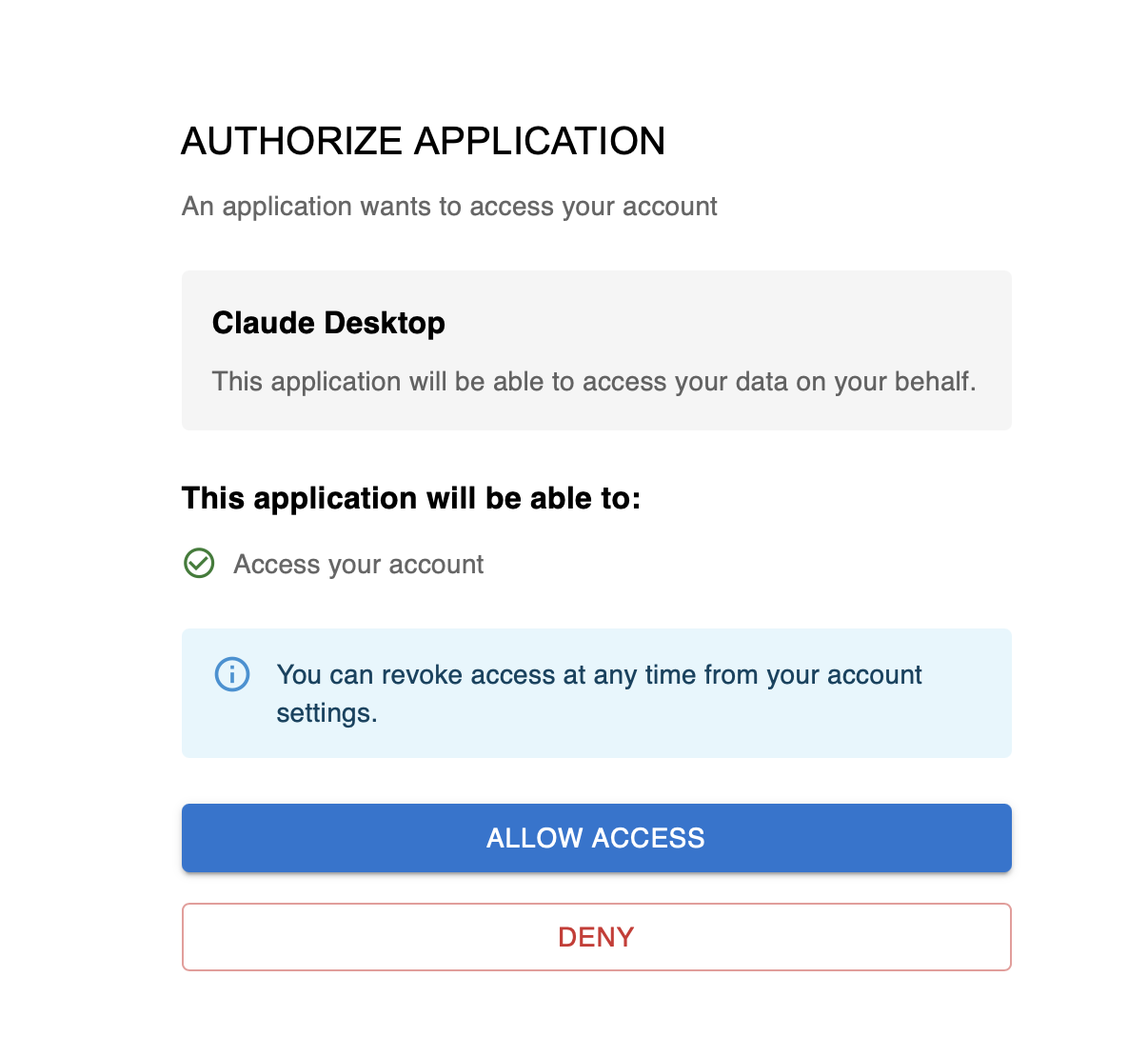 1. You'll see the **"AUTHORIZE APPLICATION"** screen
2. Review the information:
* **Application**: Claude Desktop
* **Access**: "This application will be able to access your data on your behalf"
* **Permissions**: "Access your account"
3. Note: "You can revoke access at any time from your account settings"
4. Click **ALLOW ACCESS** button to grant permission
5. Or click **DENY** if you changed your mind
After authorization, you'll be redirected back to Claude Desktop, and the connector will show as "Connected".
### Step 5: Enable "Tools already loaded" Mode
**Required setting** — without this, Claude may fail to find the right Anysite tools for your requests.
The Anysite MCP Server uses a meta-tool architecture with 5 universal tools (`discover`, `execute`, `get_page`, `query_cache`, `export_data`). The default "Load tools when needed" mode searches by tool name only and often fails to match generic names like `discover` to queries like "Find Dario Amodei on LinkedIn".
1. Open **Settings** in Claude Desktop
2. Go to **Feature Preview** section
3. Find **Tool access** → **Tool access mode**
4. Select **"Tools already loaded"**
1. You'll see the **"AUTHORIZE APPLICATION"** screen
2. Review the information:
* **Application**: Claude Desktop
* **Access**: "This application will be able to access your data on your behalf"
* **Permissions**: "Access your account"
3. Note: "You can revoke access at any time from your account settings"
4. Click **ALLOW ACCESS** button to grant permission
5. Or click **DENY** if you changed your mind
After authorization, you'll be redirected back to Claude Desktop, and the connector will show as "Connected".
### Step 5: Enable "Tools already loaded" Mode
**Required setting** — without this, Claude may fail to find the right Anysite tools for your requests.
The Anysite MCP Server uses a meta-tool architecture with 5 universal tools (`discover`, `execute`, `get_page`, `query_cache`, `export_data`). The default "Load tools when needed" mode searches by tool name only and often fails to match generic names like `discover` to queries like "Find Dario Amodei on LinkedIn".
1. Open **Settings** in Claude Desktop
2. Go to **Feature Preview** section
3. Find **Tool access** → **Tool access mode**
4. Select **"Tools already loaded"**
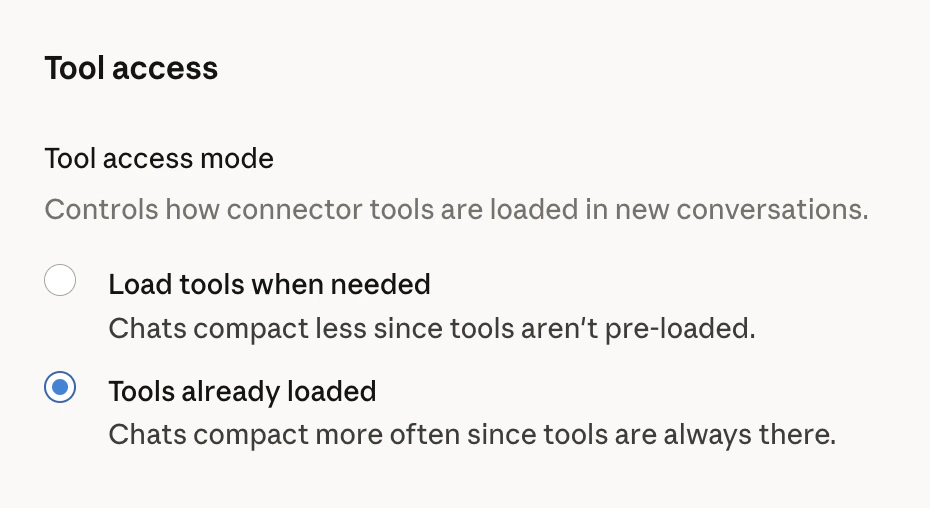 With "Tools already loaded", all 5 meta-tools and server instructions are always in Claude's context. Since there are only 5 tools (not 70+), the context overhead is minimal.
### Step 6: Manage Tool Permissions
Configure which tools Claude can use and how:
With "Tools already loaded", all 5 meta-tools and server instructions are always in Claude's context. Since there are only 5 tools (not 70+), the context overhead is minimal.
### Step 6: Manage Tool Permissions
Configure which tools Claude can use and how:
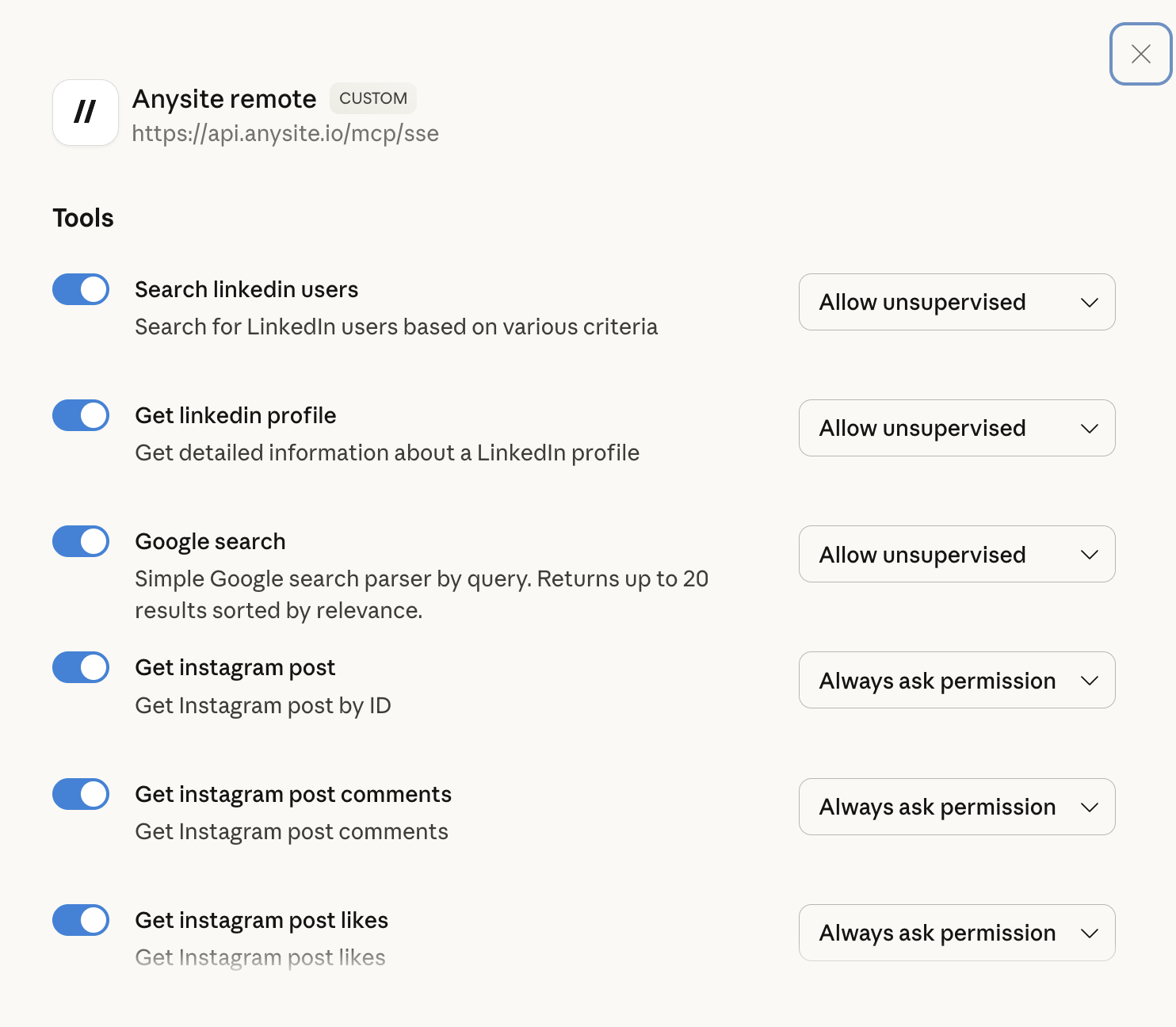 1. In the Connectors settings, you'll see your connected "Anysite remote" connector
2. Click on it to view available **Tools**
3. Each tool can be toggled on/off and has permission settings:
**Available Tools:**
* **discover** — Learn what endpoints and parameters are available
* **execute** — Fetch data from any of 115+ endpoints
* **get\_page** — Paginate through large result sets
* **query\_cache** — Filter, sort, and aggregate cached results server-side
* **export\_data** — Download datasets as JSON/CSV/JSONL
**Permission Levels:**
* **Allow unsupervised** - Claude can use the tool without asking each time
* **Always ask permission** - You'll be prompted before each tool use
* **Disabled** - Tool is not available for use
Start with "Always ask permission" for all tools until you're comfortable with how they work. Then switch frequently-used tools to "Allow unsupervised" for smoother workflows.
## Verification
Test your MCP integration:
1. Start a new conversation in Claude Desktop
2. Ask: "What MCP tools do you have access to?"
3. Claude should list all enabled Anysite tools
4. Try a simple request: "Get me information about this LinkedIn profile: [https://linkedin.com/in/username](https://linkedin.com/in/username)"
If everything is working correctly, Claude will either:
* Use the tool directly (if "Allow unsupervised")
* Ask for your permission to use the tool (if "Always ask permission")
## Managing Your Connection
### Disconnect Connector
To disconnect the Anysite MCP connector:
1. Go to Settings → Connectors
2. Find "Anysite MCP" connector
3. Click **Disconnect**
### Revoke Access
To fully revoke access from Anysite side:
1. Visit [anysite.io](https://anysite.io)
2. Go to Account Settings
3. Navigate to Connected Applications
4. Find "Claude Desktop" and revoke access
### Reconnect
If you need to reconnect:
1. Click the **Connect** button again in Claude Desktop
2. You may need to re-authorize through OAuth if access was revoked
## Troubleshooting
**Solutions:**
* Ensure your Anysite account is active with valid subscription
* Check your internet connection
* Try disconnecting and reconnecting the connector
* Clear Claude Desktop cache and restart the application
* Verify the OAuth URL is exactly: `https://mcp.anysite.io/mcp`
**Solutions:**
* Ensure you're logged in to your Anysite account in the browser
* Check if popup blockers are preventing the OAuth window
* Try using a different browser as default
* Clear browser cookies for anysite.io and retry
* Check if your firewall is blocking api.anysite.io
**Solutions:**
* Restart Claude Desktop completely
* Disconnect and reconnect the connector
* Check if your Anysite subscription includes the tools you need
* Verify tool toggles are enabled (switched on)
* Try asking Claude explicitly: "Show me all available MCP tools"
**Solutions:**
* Check API rate limits in your Anysite dashboard
* Verify your subscription is active and not expired
* Ensure you're providing valid input (e.g., correct LinkedIn URLs)
* Check if specific tools have permission set to "Disabled"
* Review error messages for specific guidance
**Solutions:**
* Change permission level from "Always ask permission" to "Allow unsupervised" for trusted tools
* Note: "Allow unsupervised" means Claude can use tools without asking each time
* You can always change permissions back if needed
**Solutions:**
* This is expected behavior - Anysite MCP is a custom connector
* "CUSTOM" label means it's not built-in to Claude Desktop
* This is completely normal and doesn't affect functionality
* Only add custom connectors from sources you trust
## Security & Privacy
OAuth 2.0 ensures your API keys never touch your local machine. Authentication tokens are managed securely.
You can revoke Claude Desktop's access to Anysite at any time from your account settings.
All API requests are logged in your Anysite dashboard for transparency and monitoring.
Granular control over which tools Claude can use and whether approval is needed.
## Best Practices
1. **Start Restrictive**: Begin with "Always ask permission" for all tools until you understand their behavior
2. **Regular Reviews**: Periodically review which tools are enabled and their permission levels
3. **Monitor Usage**: Check your Anysite dashboard regularly for API usage and quota
4. **Secure Account**: Use strong passwords and enable 2FA on your Anysite account
5. **Test First**: Try tools with sample data before using them on sensitive or production data
6. **Update Regularly**: Keep Claude Desktop updated to get the latest connector features
7. **Document Workflows**: Note which tools work best for your specific use cases
## Comparison: OAuth vs Local Server
| Feature | Claude Desktop (OAuth) | Local Server |
| -------------------- | ------------------------- | ----------------------- |
| **Setup Complexity** | Easy (GUI-based) | Moderate (command line) |
| **Authentication** | OAuth 2.0 (secure) | Environment variables |
| **Credentials** | Managed automatically | Manual configuration |
| **Tool Updates** | Automatic | Requires git pull |
| **Best For** | General users, production | Developers, testing |
| **Security** | OAuth tokens | API keys in config |
| **Revocation** | One-click disconnect | Manual removal |
## Next Steps
* [Explore Usage Examples](/mcp-server/claude-desktop-tool/examples)
* [View All Available Tools](/mcp-server/tools)
* [Learn About Local Server Setup](/mcp-server/local-server/installation)
* [Try n8n Integration](/mcp-server/n8n-tool/installation)
## Need Help?
Contact our support team for assistance with Claude Desktop MCP integration
1. In the Connectors settings, you'll see your connected "Anysite remote" connector
2. Click on it to view available **Tools**
3. Each tool can be toggled on/off and has permission settings:
**Available Tools:**
* **discover** — Learn what endpoints and parameters are available
* **execute** — Fetch data from any of 115+ endpoints
* **get\_page** — Paginate through large result sets
* **query\_cache** — Filter, sort, and aggregate cached results server-side
* **export\_data** — Download datasets as JSON/CSV/JSONL
**Permission Levels:**
* **Allow unsupervised** - Claude can use the tool without asking each time
* **Always ask permission** - You'll be prompted before each tool use
* **Disabled** - Tool is not available for use
Start with "Always ask permission" for all tools until you're comfortable with how they work. Then switch frequently-used tools to "Allow unsupervised" for smoother workflows.
## Verification
Test your MCP integration:
1. Start a new conversation in Claude Desktop
2. Ask: "What MCP tools do you have access to?"
3. Claude should list all enabled Anysite tools
4. Try a simple request: "Get me information about this LinkedIn profile: [https://linkedin.com/in/username](https://linkedin.com/in/username)"
If everything is working correctly, Claude will either:
* Use the tool directly (if "Allow unsupervised")
* Ask for your permission to use the tool (if "Always ask permission")
## Managing Your Connection
### Disconnect Connector
To disconnect the Anysite MCP connector:
1. Go to Settings → Connectors
2. Find "Anysite MCP" connector
3. Click **Disconnect**
### Revoke Access
To fully revoke access from Anysite side:
1. Visit [anysite.io](https://anysite.io)
2. Go to Account Settings
3. Navigate to Connected Applications
4. Find "Claude Desktop" and revoke access
### Reconnect
If you need to reconnect:
1. Click the **Connect** button again in Claude Desktop
2. You may need to re-authorize through OAuth if access was revoked
## Troubleshooting
**Solutions:**
* Ensure your Anysite account is active with valid subscription
* Check your internet connection
* Try disconnecting and reconnecting the connector
* Clear Claude Desktop cache and restart the application
* Verify the OAuth URL is exactly: `https://mcp.anysite.io/mcp`
**Solutions:**
* Ensure you're logged in to your Anysite account in the browser
* Check if popup blockers are preventing the OAuth window
* Try using a different browser as default
* Clear browser cookies for anysite.io and retry
* Check if your firewall is blocking api.anysite.io
**Solutions:**
* Restart Claude Desktop completely
* Disconnect and reconnect the connector
* Check if your Anysite subscription includes the tools you need
* Verify tool toggles are enabled (switched on)
* Try asking Claude explicitly: "Show me all available MCP tools"
**Solutions:**
* Check API rate limits in your Anysite dashboard
* Verify your subscription is active and not expired
* Ensure you're providing valid input (e.g., correct LinkedIn URLs)
* Check if specific tools have permission set to "Disabled"
* Review error messages for specific guidance
**Solutions:**
* Change permission level from "Always ask permission" to "Allow unsupervised" for trusted tools
* Note: "Allow unsupervised" means Claude can use tools without asking each time
* You can always change permissions back if needed
**Solutions:**
* This is expected behavior - Anysite MCP is a custom connector
* "CUSTOM" label means it's not built-in to Claude Desktop
* This is completely normal and doesn't affect functionality
* Only add custom connectors from sources you trust
## Security & Privacy
OAuth 2.0 ensures your API keys never touch your local machine. Authentication tokens are managed securely.
You can revoke Claude Desktop's access to Anysite at any time from your account settings.
All API requests are logged in your Anysite dashboard for transparency and monitoring.
Granular control over which tools Claude can use and whether approval is needed.
## Best Practices
1. **Start Restrictive**: Begin with "Always ask permission" for all tools until you understand their behavior
2. **Regular Reviews**: Periodically review which tools are enabled and their permission levels
3. **Monitor Usage**: Check your Anysite dashboard regularly for API usage and quota
4. **Secure Account**: Use strong passwords and enable 2FA on your Anysite account
5. **Test First**: Try tools with sample data before using them on sensitive or production data
6. **Update Regularly**: Keep Claude Desktop updated to get the latest connector features
7. **Document Workflows**: Note which tools work best for your specific use cases
## Comparison: OAuth vs Local Server
| Feature | Claude Desktop (OAuth) | Local Server |
| -------------------- | ------------------------- | ----------------------- |
| **Setup Complexity** | Easy (GUI-based) | Moderate (command line) |
| **Authentication** | OAuth 2.0 (secure) | Environment variables |
| **Credentials** | Managed automatically | Manual configuration |
| **Tool Updates** | Automatic | Requires git pull |
| **Best For** | General users, production | Developers, testing |
| **Security** | OAuth tokens | API keys in config |
| **Revocation** | One-click disconnect | Manual removal |
## Next Steps
* [Explore Usage Examples](/mcp-server/claude-desktop-tool/examples)
* [View All Available Tools](/mcp-server/tools)
* [Learn About Local Server Setup](/mcp-server/local-server/installation)
* [Try n8n Integration](/mcp-server/n8n-tool/installation)
## Need Help?
Contact our support team for assistance with Claude Desktop MCP integration