> ## Documentation Index
> Fetch the complete documentation index at: https://docs.anysite.io/llms.txt
> Use this file to discover all available pages before exploring further.
# Claude Code MCP Tool Installation
> Connect Anysite MCP Server to Claude Code using CLI commands
## Overview
The Anysite MCP Tool for Claude Code provides seamless CLI-based integration between Claude Code and the Anysite API through the Model Context Protocol (MCP). This allows you to access LinkedIn, Instagram, Reddit, and other social media data extraction tools directly in your Claude Code sessions using terminal commands.
## Prerequisites
* Claude Code installed ([download here](https://claude.ai/download))
* Terminal/Command line access
* Anysite API account with active subscription
* Basic familiarity with command line interfaces
## Why Claude Code Integration?
Full command-line control for developers and power users
Configure per-project, per-user, or locally with flexible scopes
Perfect for automation, scripts, and continuous integration pipelines
Project-scoped configs can be committed and shared via `.mcp.json`
## Installation Steps
### Step 1: Get Connection URL
First, obtain your connection URL from the Anysite dashboard:
1. Visit [anysite.io](https://anysite.io) and log in to your account
2. Navigate to **MCP Server Integration** section
3. You'll see two connection options:
* **OAuth URL**: `https://mcp.anysite.io/mcp` (for GUI clients)
* **Direct URL**: Contains API key directly (recommended for Claude Code)
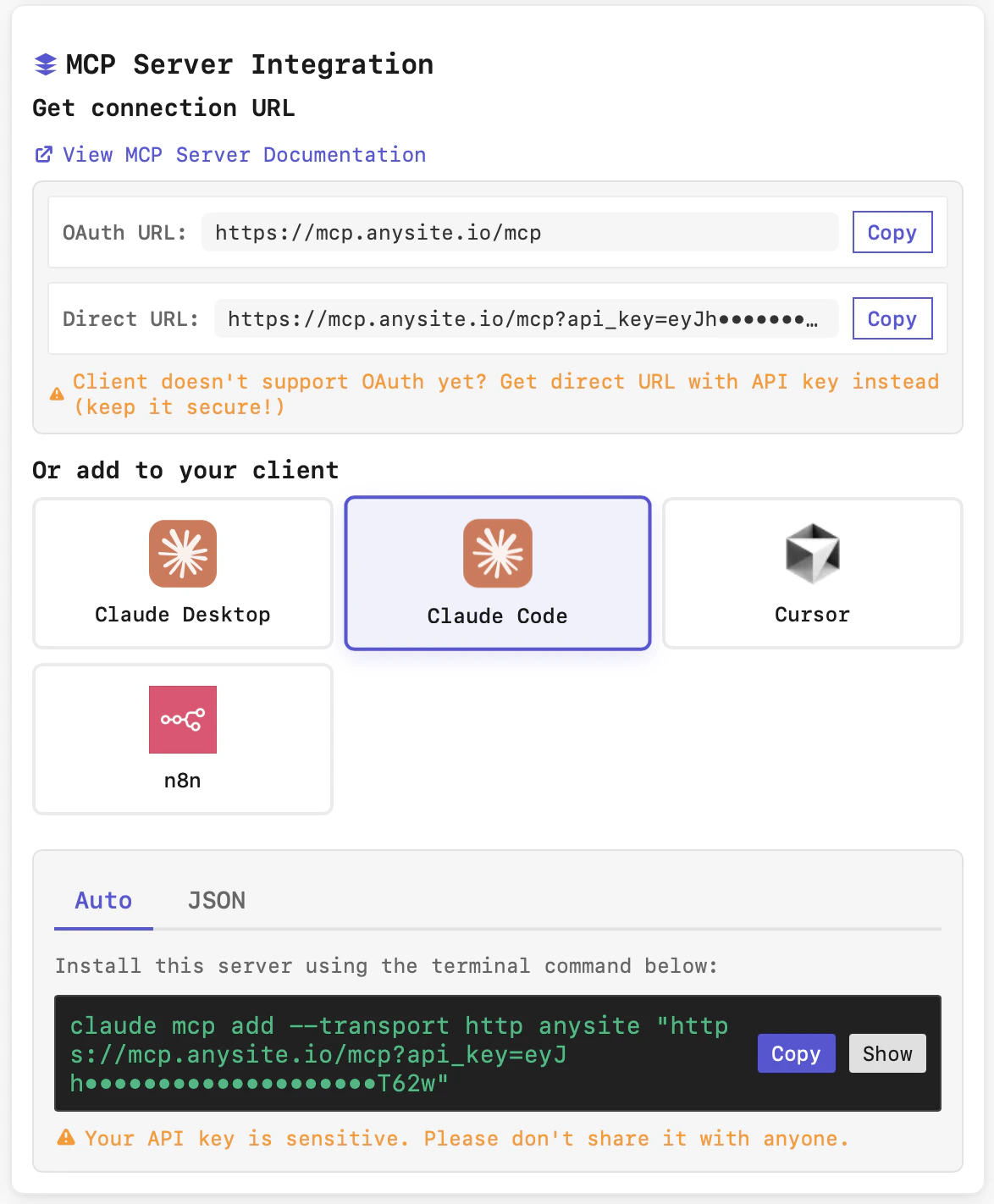 4. In the "Or add to your client" section, select **Claude Code**
5. The "Auto" tab will display the complete terminal command
For Claude Code, use the **Direct URL** which includes your API key in the connection string.
Keep your connection URL secure - it contains your API key. Never share it publicly or commit it to version control.
### Step 2: Install via Terminal
There are two installation methods available:
Copy and run the command in your terminal:
```bash theme={null}
claude mcp add --transport http anysite "https://mcp.anysite.io/mcp?api_key=YOUR_API_KEY"
```
**Command breakdown:**
* `claude mcp add` - Add a new MCP server
* `--transport http` - Use HTTP transport (streamable)
* `anysite` - Name for this server (you can customize)
* `"URL"` - Your MCP URL with API key
**Optional parameters:**
```bash theme={null}
# Add with specific scope
claude mcp add --transport http --scope user anysite "https://mcp.anysite.io/mcp?api_key=YOUR_API_KEY"
# Add with environment variable (more secure)
export ANYSITE_API_KEY="your_key_here"
claude mcp add --transport http anysite "https://mcp.anysite.io/mcp?api_key=$ANYSITE_API_KEY"
```
Alternatively, you can configure MCP via JSON configuration file.
**For macOS:**
Edit `~/.claude.json` or `.mcp.json` in your project root:
**For Windows:**
Edit `%APPDATA%\Claude\claude_desktop_config.json`
Add the following configuration:
```json theme={null}
{
"mcpServers": {
"anysite": {
"command": "npx",
"args": ["-y", "@anysiteio/mcp"],
"env": {
"ANYSITE_API_KEY": "YOUR_API_KEY",
"ANYSITE_ACCOUNT_ID": ""
}
}
}
}
```
The NPX method automatically downloads and runs the latest Anysite MCP package. It requires Node.js and npm installed on your system.
**Configuration breakdown:**
* `command: "npx"` - Uses npx to run the package
* `args: ["-y", "@anysiteio/mcp"]` - Auto-confirms and runs the Anysite MCP package
* `ANYSITE_API_KEY` - Your API key from the Anysite dashboard
* `ANYSITE_ACCOUNT_ID` - Optional account ID (leave empty if not needed)
**Understanding Scopes:**
**Project-specific, private**
* Configuration stored in current directory
* Not shared or version controlled
* Best for: Personal API keys, temporary setups
```bash theme={null}
claude mcp add --scope local anysite "URL"
```
**Shared via version control**
* Stored in `.mcp.json` in project root
* Can be committed to git
* Team members get same configuration
* Best for: Shared resources, team projects
```bash theme={null}
claude mcp add --scope project anysite "URL"
```
Don't commit API keys! Use environment variables with project scope.
**Cross-project, personal**
* Stored in `~/.claude.json`
* Available across all projects
* Best for: Personal utilities, global tools
```bash theme={null}
claude mcp add --scope user anysite "URL"
```
### Step 3: Verify Installation
After installation, verify the MCP server is working:
**List all configured servers:**
```bash theme={null}
claude mcp list
```
Expected output:
```
anysite (http)
✔ connected
https://mcp.anysite.io/mcp?api_key=***
```
**Test specific server:**
```bash theme={null}
claude mcp get anysite
```
This command:
* Tests the connection to Anysite MCP server
* Shows available tools
* Displays server status and configuration
**Check within Claude Code conversation:**
During a Claude Code session, use:
```
/mcp
```
This shows real-time MCP server status and available tools.
If you see "✔ connected" status, the installation was successful!
## Managing Your Connection
### View Installed Servers
```bash theme={null}
# List all MCP servers
claude mcp list
# Get details for specific server
claude mcp get anysite
```
### Update Server Configuration
To update the server URL or configuration:
1. Remove existing server:
```bash theme={null}
claude mcp remove anysite
```
2. Re-add with new configuration:
```bash theme={null}
claude mcp add --transport http anysite "https://mcp.anysite.io/mcp?api_key=YOUR_API_KEY"
```
### Remove Server
```bash theme={null}
claude mcp remove anysite
```
**Known Issue**: `claude mcp remove` may not properly remove project-scoped servers. If this happens, manually edit:
* macOS: `~/Library/Application Support/Claude/claude_desktop_config.json`
* Windows: `%APPDATA%\Claude\claude_desktop_config.json`
### Debug Mode
For troubleshooting connection issues:
```bash theme={null}
claude --mcp-debug
```
This runs Claude Code with detailed MCP debug output, showing:
* Connection attempts
* Tool discovery
* Error messages
* Transport details
## Configuration Files
Claude Code stores MCP configurations in different locations based on scope:
| Scope | Location | Purpose |
| ----------- | ---------------------- | ----------------------------- |
| **local** | `./.claude-local.json` | Current directory only |
| **project** | `./.mcp.json` | Project root, version control |
| **user** | `~/.claude.json` | User's home directory |
## Troubleshooting
**Solutions:**
* Restart Claude Code completely
* Verify the API key is valid and active
* Check internet connectivity
* Test the URL in browser (should return JSON)
* Use debug mode: `claude --mcp-debug`
* Check Anysite dashboard for API quota
**Solutions:**
* Restart Claude Code application
* Run `claude mcp get anysite` to test connection
* Verify subscription includes the tools you need
* Remove and re-add the server:
```bash theme={null}
claude mcp remove anysite
claude mcp add --transport http anysite "https://mcp.anysite.io/mcp?api_key=YOUR_API_KEY"
```
* Check if API key has expired
**Solutions:**
* Ensure Claude Code is properly installed
* Add Claude Code to your PATH:
* macOS: Add to `~/.zshrc` or `~/.bashrc`
* Windows: Add to System Environment Variables
* Restart terminal after installation
* Try full path: `/Applications/Claude.app/Contents/MacOS/claude` (macOS)
**Solutions:**
* Check your internet connection speed
* Increase timeout with environment variable:
```bash theme={null}
MCP_TIMEOUT=30000 claude # 30 seconds
```
* Try during off-peak hours
* Contact Anysite support if persistent
**Issue:** Same server configured at multiple scopes
**Solutions:**
* List all servers to identify duplicates:
```bash theme={null}
claude mcp list
```
* Remove from specific scope:
```bash theme={null}
# Remove from local
rm ./.claude-local.json
# Remove from project
rm ./.mcp.json
# Remove from user
claude mcp remove anysite
```
* Re-add with desired scope only
**Best practices:**
1. **Use environment variables:**
```bash theme={null}
export ANYSITE_API_KEY="your_key"
claude mcp add --transport http anysite "https://mcp.anysite.io/mcp?api_key=$ANYSITE_API_KEY"
```
2. **Never commit keys to git:**
```bash theme={null}
# Add to .gitignore
echo ".claude-local.json" >> .gitignore
echo ".mcp.json" >> .gitignore
```
3. **Use project scope with env vars:**
```bash theme={null}
# Team can share config, but not keys
claude mcp add --scope project --transport http anysite "https://mcp.anysite.io/mcp?api_key=$ANYSITE_API_KEY"
```
4. **Rotate keys regularly** from Anysite dashboard
## Advanced Configuration
### Multiple Environments
Configure different servers for dev/staging/production:
```bash theme={null}
# Development
claude mcp add --transport http --scope local anysite-dev "https://mcp.anysite.io/mcp?api_key=DEV_KEY"
# Production
claude mcp add --transport http --scope user anysite-prod "https://mcp.anysite.io/mcp?api_key=PROD_KEY"
```
### Custom Server Names
Use descriptive names for better organization:
```bash theme={null}
# By team
claude mcp add --transport http marketing-anysite "https://mcp.anysite.io/mcp?api_key=YOUR_API_KEY"
# By project
claude mcp add --transport http project-alpha-anysite "https://mcp.anysite.io/mcp?api_key=YOUR_API_KEY"
# By environment
claude mcp add --transport http anysite-staging "https://mcp.anysite.io/mcp?api_key=YOUR_API_KEY"
```
### Alternative: NPX Package
You can also use the NPX package method for more flexibility:
```json theme={null}
{
"mcpServers": {
"anysite": {
"command": "npx",
"args": ["-y", "@anysiteio/mcp"],
"env": {
"ANYSITE_API_KEY": "YOUR_API_KEY",
"ANYSITE_ACCOUNT_ID": ""
}
}
}
}
```
This method:
* Auto-updates to the latest package version
* Works across different environments consistently
* Supports additional environment variables for customization
## Comparison: Claude Code vs Other Integrations
| Feature | Claude Code (CLI) | Claude Desktop (GUI) | Local Server |
| ----------------- | ---------------------- | -------------------- | ----------------- |
| **Interface** | Command line | Graphical settings | Config files |
| **Setup** | Terminal command | Click-through OAuth | Python server |
| **Best For** | Developers, automation | General users | Full control |
| **Scope Control** | ✅ local/project/user | ❌ Global only | ✅ Per config |
| **CI/CD Ready** | ✅ Yes | ❌ No | ✅ Yes |
| **Auto Updates** | ❌ Manual | ✅ Automatic | ❌ Manual |
| **Debugging** | ✅ `--mcp-debug` | ⚠️ Limited | ✅ Full logs |
| **Team Sharing** | ✅ Via `.mcp.json` | ❌ Per machine | ✅ Via git |
| **Security** | ⚠️ API key in config | ✅ OAuth tokens | ⚠️ API key in env |
## Environment Variables
Useful environment variables for Claude Code MCP:
```bash theme={null}
# Connection timeout (milliseconds)
export MCP_TIMEOUT=15000
# Maximum output tokens from MCP tools
export MAX_MCP_OUTPUT_TOKENS=50000
# Warning threshold for large outputs
export MCP_OUTPUT_WARNING_THRESHOLD=10000
# Run with debug mode
export CLAUDE_MCP_DEBUG=1
```
Add to your shell profile (`~/.zshrc`, `~/.bashrc`) for persistent settings.
## Security Best Practices
Store API keys in environment variables, never hardcode in commands
Use `local` scope for sensitive keys, `project` for shared configs
Always add `.claude-local.json` and `.mcp.json` to `.gitignore`
Regularly regenerate API keys from Anysite dashboard
Review configured servers periodically with `claude mcp list`
Clean up old server configs to reduce security surface
## Next Steps
* [Explore Usage Examples](/mcp-server/claude-code-tool/examples)
* [View All Available Tools](/mcp-server/tools)
* [Compare with Claude Desktop](/mcp-server/claude-desktop-tool/installation)
* [Try Local Server Setup](/mcp-server/local-server/installation)
## Need Help?
Contact our support team for assistance with Claude Code MCP integration
4. In the "Or add to your client" section, select **Claude Code**
5. The "Auto" tab will display the complete terminal command
For Claude Code, use the **Direct URL** which includes your API key in the connection string.
Keep your connection URL secure - it contains your API key. Never share it publicly or commit it to version control.
### Step 2: Install via Terminal
There are two installation methods available:
Copy and run the command in your terminal:
```bash theme={null}
claude mcp add --transport http anysite "https://mcp.anysite.io/mcp?api_key=YOUR_API_KEY"
```
**Command breakdown:**
* `claude mcp add` - Add a new MCP server
* `--transport http` - Use HTTP transport (streamable)
* `anysite` - Name for this server (you can customize)
* `"URL"` - Your MCP URL with API key
**Optional parameters:**
```bash theme={null}
# Add with specific scope
claude mcp add --transport http --scope user anysite "https://mcp.anysite.io/mcp?api_key=YOUR_API_KEY"
# Add with environment variable (more secure)
export ANYSITE_API_KEY="your_key_here"
claude mcp add --transport http anysite "https://mcp.anysite.io/mcp?api_key=$ANYSITE_API_KEY"
```
Alternatively, you can configure MCP via JSON configuration file.
**For macOS:**
Edit `~/.claude.json` or `.mcp.json` in your project root:
**For Windows:**
Edit `%APPDATA%\Claude\claude_desktop_config.json`
Add the following configuration:
```json theme={null}
{
"mcpServers": {
"anysite": {
"command": "npx",
"args": ["-y", "@anysiteio/mcp"],
"env": {
"ANYSITE_API_KEY": "YOUR_API_KEY",
"ANYSITE_ACCOUNT_ID": ""
}
}
}
}
```
The NPX method automatically downloads and runs the latest Anysite MCP package. It requires Node.js and npm installed on your system.
**Configuration breakdown:**
* `command: "npx"` - Uses npx to run the package
* `args: ["-y", "@anysiteio/mcp"]` - Auto-confirms and runs the Anysite MCP package
* `ANYSITE_API_KEY` - Your API key from the Anysite dashboard
* `ANYSITE_ACCOUNT_ID` - Optional account ID (leave empty if not needed)
**Understanding Scopes:**
**Project-specific, private**
* Configuration stored in current directory
* Not shared or version controlled
* Best for: Personal API keys, temporary setups
```bash theme={null}
claude mcp add --scope local anysite "URL"
```
**Shared via version control**
* Stored in `.mcp.json` in project root
* Can be committed to git
* Team members get same configuration
* Best for: Shared resources, team projects
```bash theme={null}
claude mcp add --scope project anysite "URL"
```
Don't commit API keys! Use environment variables with project scope.
**Cross-project, personal**
* Stored in `~/.claude.json`
* Available across all projects
* Best for: Personal utilities, global tools
```bash theme={null}
claude mcp add --scope user anysite "URL"
```
### Step 3: Verify Installation
After installation, verify the MCP server is working:
**List all configured servers:**
```bash theme={null}
claude mcp list
```
Expected output:
```
anysite (http)
✔ connected
https://mcp.anysite.io/mcp?api_key=***
```
**Test specific server:**
```bash theme={null}
claude mcp get anysite
```
This command:
* Tests the connection to Anysite MCP server
* Shows available tools
* Displays server status and configuration
**Check within Claude Code conversation:**
During a Claude Code session, use:
```
/mcp
```
This shows real-time MCP server status and available tools.
If you see "✔ connected" status, the installation was successful!
## Managing Your Connection
### View Installed Servers
```bash theme={null}
# List all MCP servers
claude mcp list
# Get details for specific server
claude mcp get anysite
```
### Update Server Configuration
To update the server URL or configuration:
1. Remove existing server:
```bash theme={null}
claude mcp remove anysite
```
2. Re-add with new configuration:
```bash theme={null}
claude mcp add --transport http anysite "https://mcp.anysite.io/mcp?api_key=YOUR_API_KEY"
```
### Remove Server
```bash theme={null}
claude mcp remove anysite
```
**Known Issue**: `claude mcp remove` may not properly remove project-scoped servers. If this happens, manually edit:
* macOS: `~/Library/Application Support/Claude/claude_desktop_config.json`
* Windows: `%APPDATA%\Claude\claude_desktop_config.json`
### Debug Mode
For troubleshooting connection issues:
```bash theme={null}
claude --mcp-debug
```
This runs Claude Code with detailed MCP debug output, showing:
* Connection attempts
* Tool discovery
* Error messages
* Transport details
## Configuration Files
Claude Code stores MCP configurations in different locations based on scope:
| Scope | Location | Purpose |
| ----------- | ---------------------- | ----------------------------- |
| **local** | `./.claude-local.json` | Current directory only |
| **project** | `./.mcp.json` | Project root, version control |
| **user** | `~/.claude.json` | User's home directory |
## Troubleshooting
**Solutions:**
* Restart Claude Code completely
* Verify the API key is valid and active
* Check internet connectivity
* Test the URL in browser (should return JSON)
* Use debug mode: `claude --mcp-debug`
* Check Anysite dashboard for API quota
**Solutions:**
* Restart Claude Code application
* Run `claude mcp get anysite` to test connection
* Verify subscription includes the tools you need
* Remove and re-add the server:
```bash theme={null}
claude mcp remove anysite
claude mcp add --transport http anysite "https://mcp.anysite.io/mcp?api_key=YOUR_API_KEY"
```
* Check if API key has expired
**Solutions:**
* Ensure Claude Code is properly installed
* Add Claude Code to your PATH:
* macOS: Add to `~/.zshrc` or `~/.bashrc`
* Windows: Add to System Environment Variables
* Restart terminal after installation
* Try full path: `/Applications/Claude.app/Contents/MacOS/claude` (macOS)
**Solutions:**
* Check your internet connection speed
* Increase timeout with environment variable:
```bash theme={null}
MCP_TIMEOUT=30000 claude # 30 seconds
```
* Try during off-peak hours
* Contact Anysite support if persistent
**Issue:** Same server configured at multiple scopes
**Solutions:**
* List all servers to identify duplicates:
```bash theme={null}
claude mcp list
```
* Remove from specific scope:
```bash theme={null}
# Remove from local
rm ./.claude-local.json
# Remove from project
rm ./.mcp.json
# Remove from user
claude mcp remove anysite
```
* Re-add with desired scope only
**Best practices:**
1. **Use environment variables:**
```bash theme={null}
export ANYSITE_API_KEY="your_key"
claude mcp add --transport http anysite "https://mcp.anysite.io/mcp?api_key=$ANYSITE_API_KEY"
```
2. **Never commit keys to git:**
```bash theme={null}
# Add to .gitignore
echo ".claude-local.json" >> .gitignore
echo ".mcp.json" >> .gitignore
```
3. **Use project scope with env vars:**
```bash theme={null}
# Team can share config, but not keys
claude mcp add --scope project --transport http anysite "https://mcp.anysite.io/mcp?api_key=$ANYSITE_API_KEY"
```
4. **Rotate keys regularly** from Anysite dashboard
## Advanced Configuration
### Multiple Environments
Configure different servers for dev/staging/production:
```bash theme={null}
# Development
claude mcp add --transport http --scope local anysite-dev "https://mcp.anysite.io/mcp?api_key=DEV_KEY"
# Production
claude mcp add --transport http --scope user anysite-prod "https://mcp.anysite.io/mcp?api_key=PROD_KEY"
```
### Custom Server Names
Use descriptive names for better organization:
```bash theme={null}
# By team
claude mcp add --transport http marketing-anysite "https://mcp.anysite.io/mcp?api_key=YOUR_API_KEY"
# By project
claude mcp add --transport http project-alpha-anysite "https://mcp.anysite.io/mcp?api_key=YOUR_API_KEY"
# By environment
claude mcp add --transport http anysite-staging "https://mcp.anysite.io/mcp?api_key=YOUR_API_KEY"
```
### Alternative: NPX Package
You can also use the NPX package method for more flexibility:
```json theme={null}
{
"mcpServers": {
"anysite": {
"command": "npx",
"args": ["-y", "@anysiteio/mcp"],
"env": {
"ANYSITE_API_KEY": "YOUR_API_KEY",
"ANYSITE_ACCOUNT_ID": ""
}
}
}
}
```
This method:
* Auto-updates to the latest package version
* Works across different environments consistently
* Supports additional environment variables for customization
## Comparison: Claude Code vs Other Integrations
| Feature | Claude Code (CLI) | Claude Desktop (GUI) | Local Server |
| ----------------- | ---------------------- | -------------------- | ----------------- |
| **Interface** | Command line | Graphical settings | Config files |
| **Setup** | Terminal command | Click-through OAuth | Python server |
| **Best For** | Developers, automation | General users | Full control |
| **Scope Control** | ✅ local/project/user | ❌ Global only | ✅ Per config |
| **CI/CD Ready** | ✅ Yes | ❌ No | ✅ Yes |
| **Auto Updates** | ❌ Manual | ✅ Automatic | ❌ Manual |
| **Debugging** | ✅ `--mcp-debug` | ⚠️ Limited | ✅ Full logs |
| **Team Sharing** | ✅ Via `.mcp.json` | ❌ Per machine | ✅ Via git |
| **Security** | ⚠️ API key in config | ✅ OAuth tokens | ⚠️ API key in env |
## Environment Variables
Useful environment variables for Claude Code MCP:
```bash theme={null}
# Connection timeout (milliseconds)
export MCP_TIMEOUT=15000
# Maximum output tokens from MCP tools
export MAX_MCP_OUTPUT_TOKENS=50000
# Warning threshold for large outputs
export MCP_OUTPUT_WARNING_THRESHOLD=10000
# Run with debug mode
export CLAUDE_MCP_DEBUG=1
```
Add to your shell profile (`~/.zshrc`, `~/.bashrc`) for persistent settings.
## Security Best Practices
Store API keys in environment variables, never hardcode in commands
Use `local` scope for sensitive keys, `project` for shared configs
Always add `.claude-local.json` and `.mcp.json` to `.gitignore`
Regularly regenerate API keys from Anysite dashboard
Review configured servers periodically with `claude mcp list`
Clean up old server configs to reduce security surface
## Next Steps
* [Explore Usage Examples](/mcp-server/claude-code-tool/examples)
* [View All Available Tools](/mcp-server/tools)
* [Compare with Claude Desktop](/mcp-server/claude-desktop-tool/installation)
* [Try Local Server Setup](/mcp-server/local-server/installation)
## Need Help?
Contact our support team for assistance with Claude Code MCP integration